
Practise in training mode
Train new staff safely on the Tavolify POS with training mode: real screens, but nothing is saved or sent to the fiscal printer.
1 min readUpdated November 13, 2026
Training mode looks like the real till, but no sale is saved.
Steps
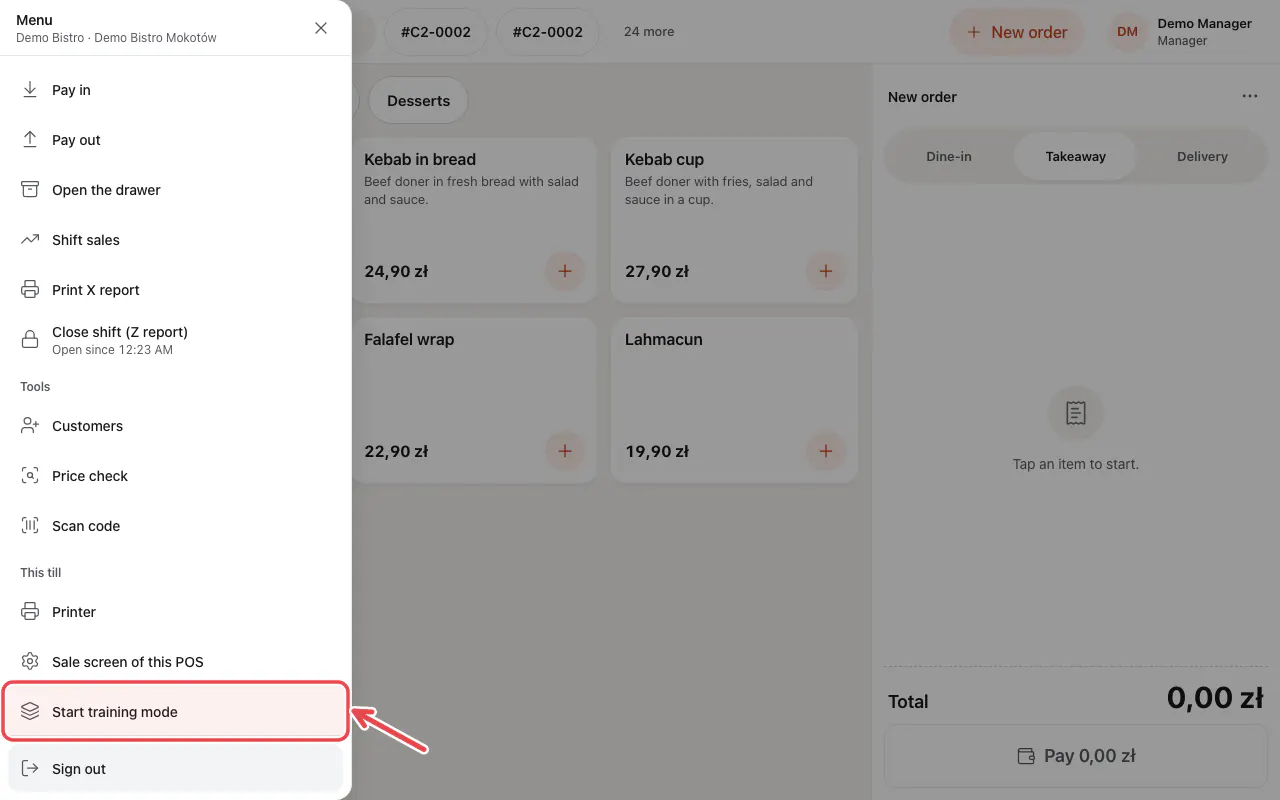
Open the menu (☰) and tap Start training mode.
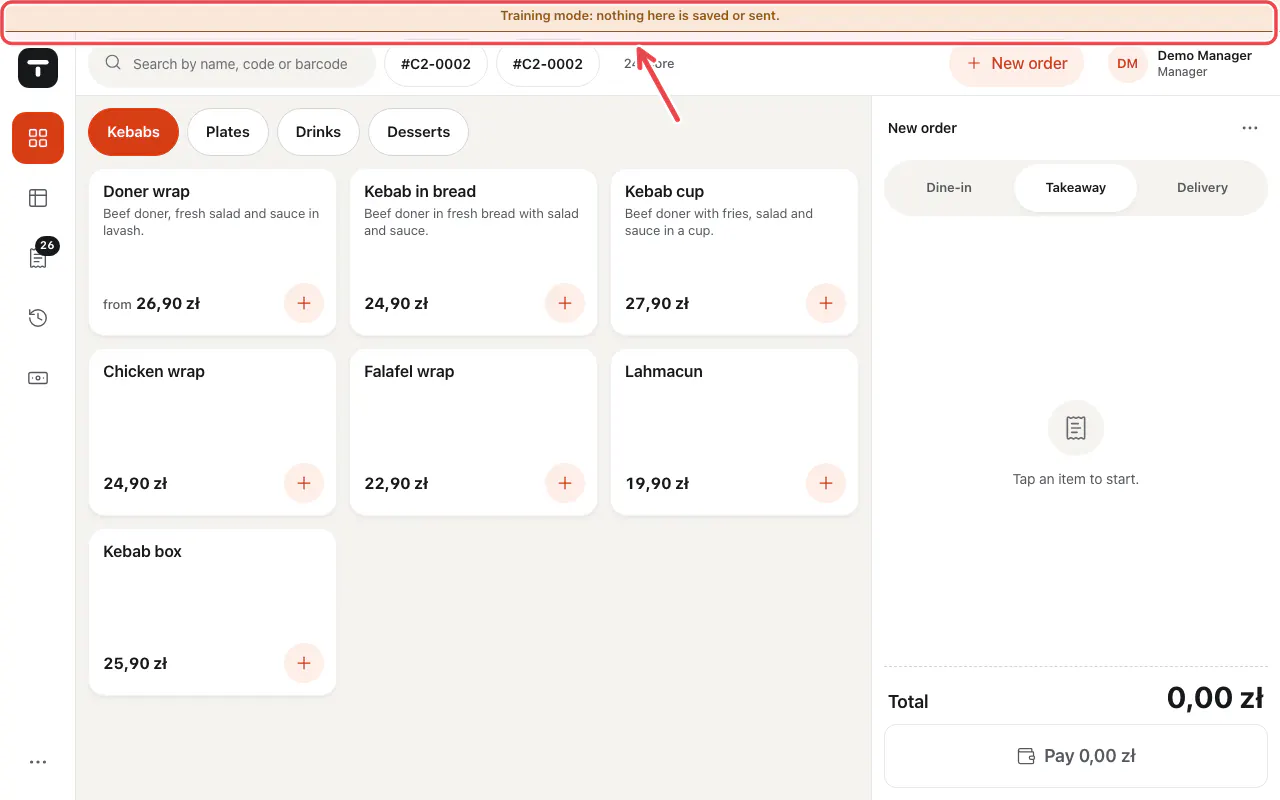
A bar shows that training is on. To stop, open the menu again and tap End training mode.
Related articles
- Take an order
- Finish the setup guide
- Add staff and set POS PINs
Did this answer your question?
Still need help?Our team is happy to answer.
Send us a message