
Take an order
Take an order on the Tavolify POS: categories, products and options, eat in or takeaway, notes and discounts, kitchen and payment.
1 min readUpdated November 13, 2026
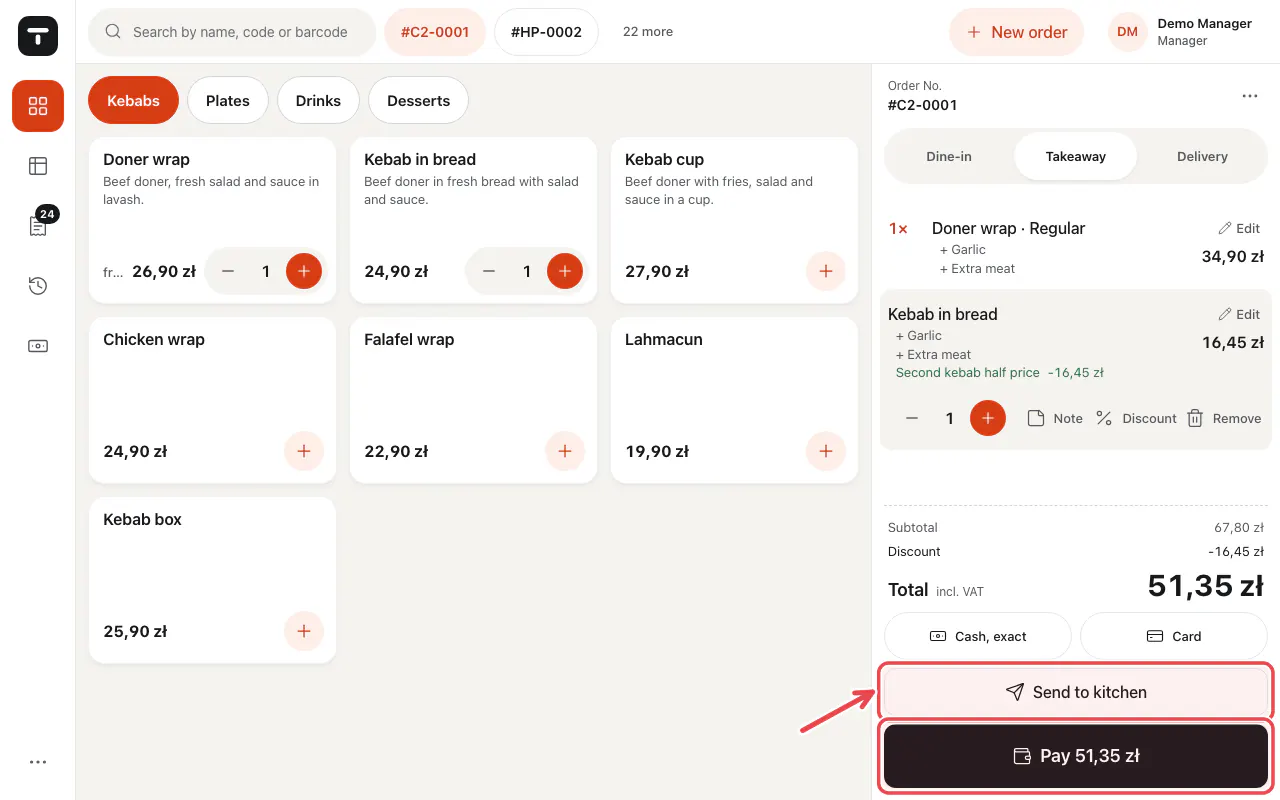
The sale screen has the categories and products on the left and the ticket on the right.
Steps
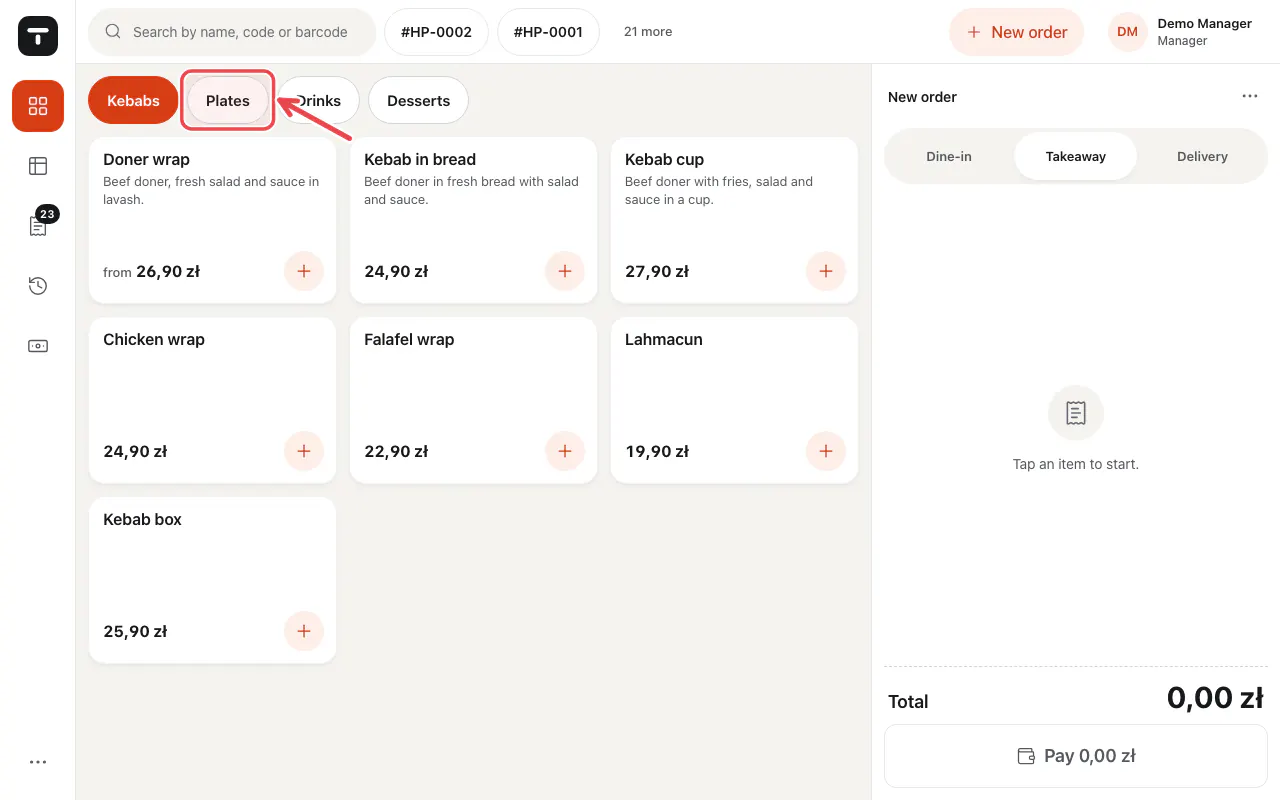
Tap a category in the row at the top. Swipe the row sideways when there are more.
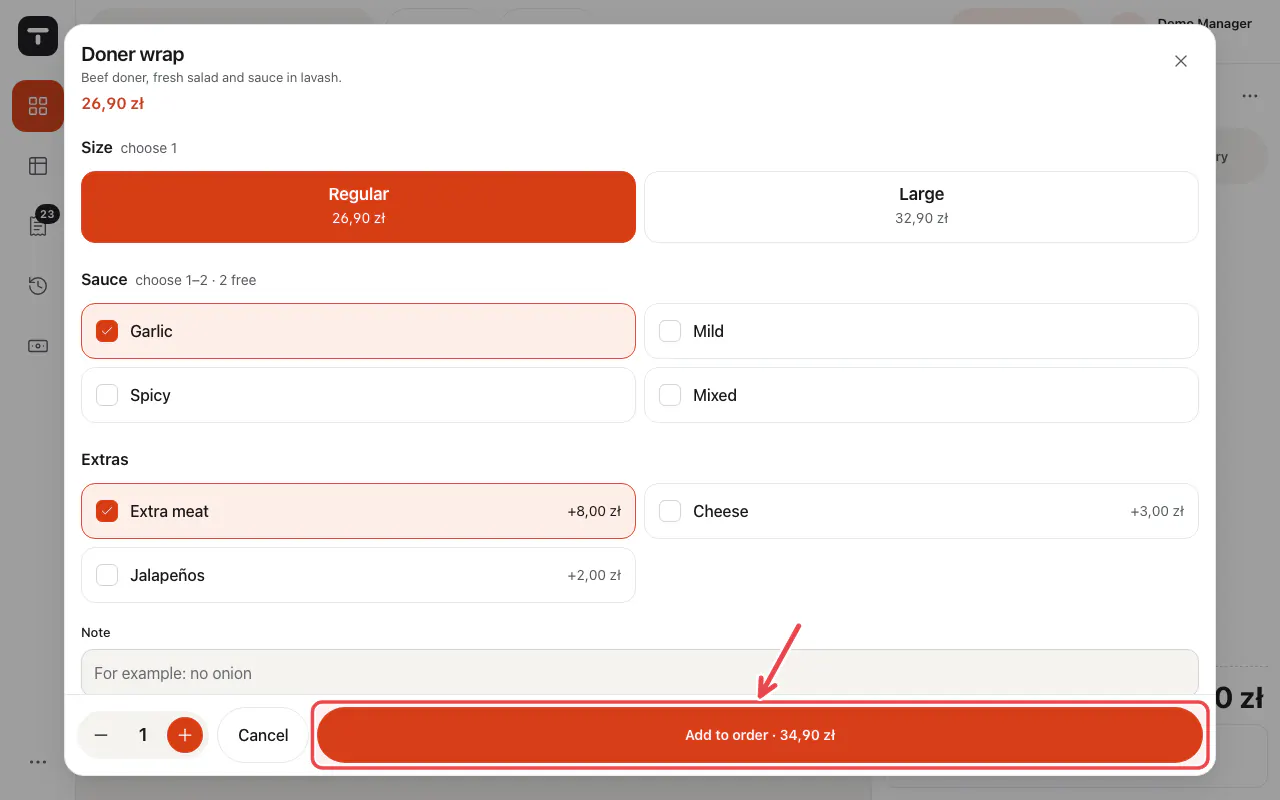
Tap a product. When it has sizes or choices, pick them and tap the big add button at the bottom of the window (it shows the price).
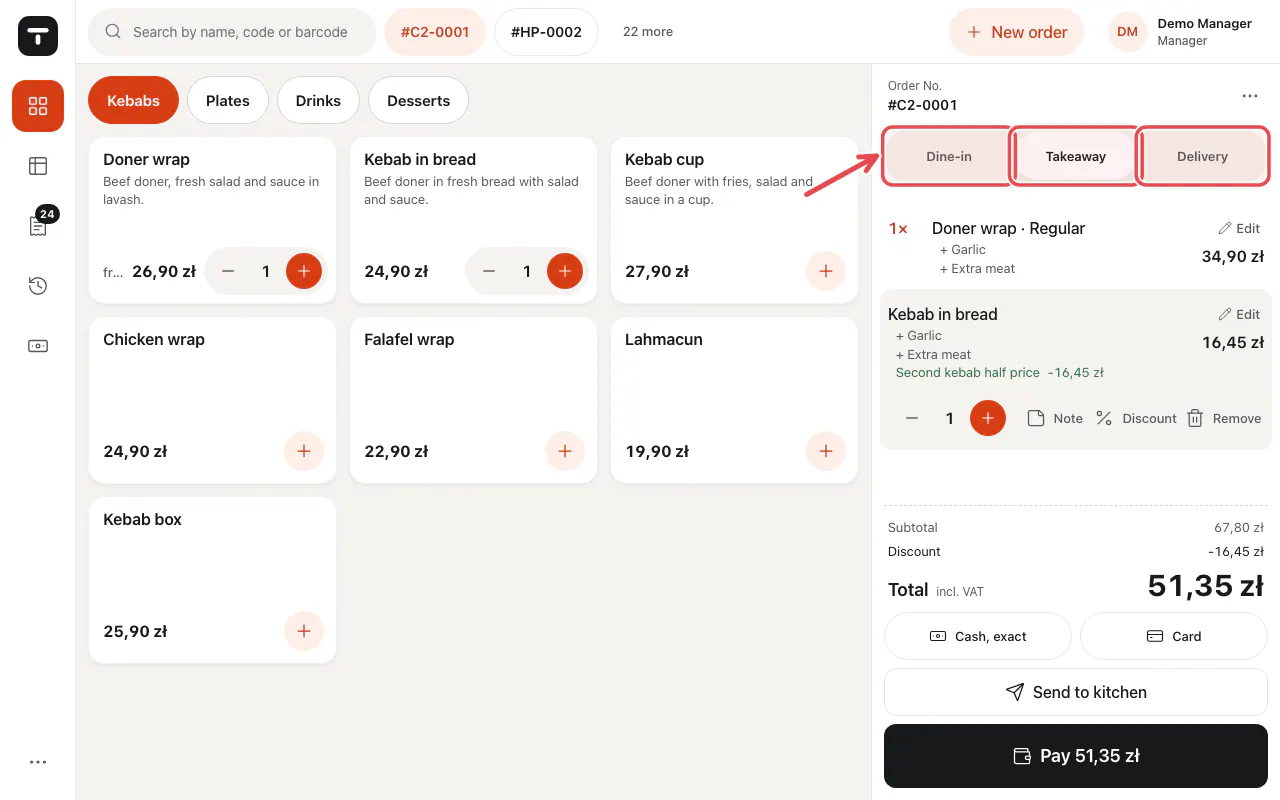
Choose the order type on the ticket: Dine-in, Takeaway or Delivery.
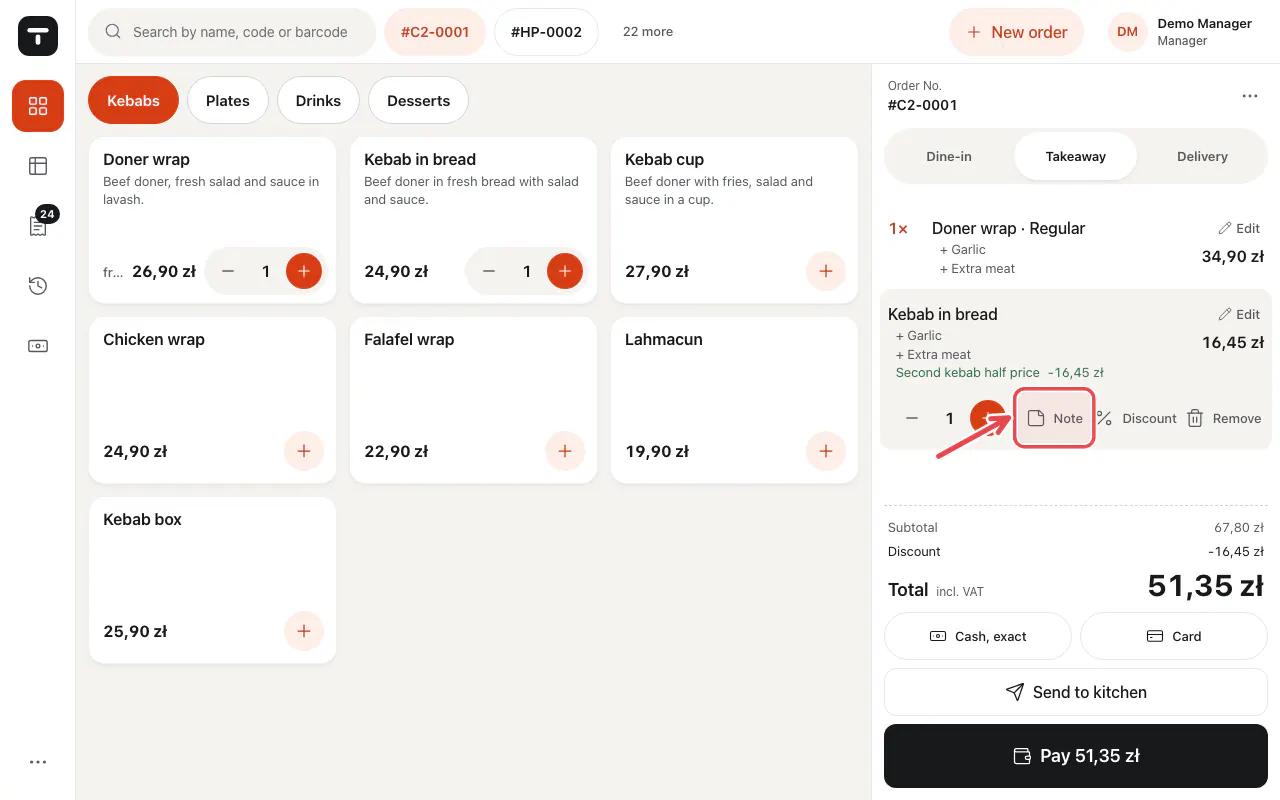
Tap a line on the ticket to add a Note, give a Discount or Remove it.
Tap Send to kitchen to start cooking, or Pay … to take payment now.
Tip: Search by name, code or barcode in the box at the top.
Related articles
- Take payment: cash, card and more
- Tables and the floor plan
- Discounts on an item or the whole bill
- Sizes and variants
Did this answer your question?