
Close the shift and the Z report
Close the shift on the Tavolify POS: count the cash, see over or short, print the Z report, and check cash drawers in Reports.
1 min readUpdated November 13, 2026
At the end of the day count the cash and close the shift. The till compares your count with what it expects.
Steps
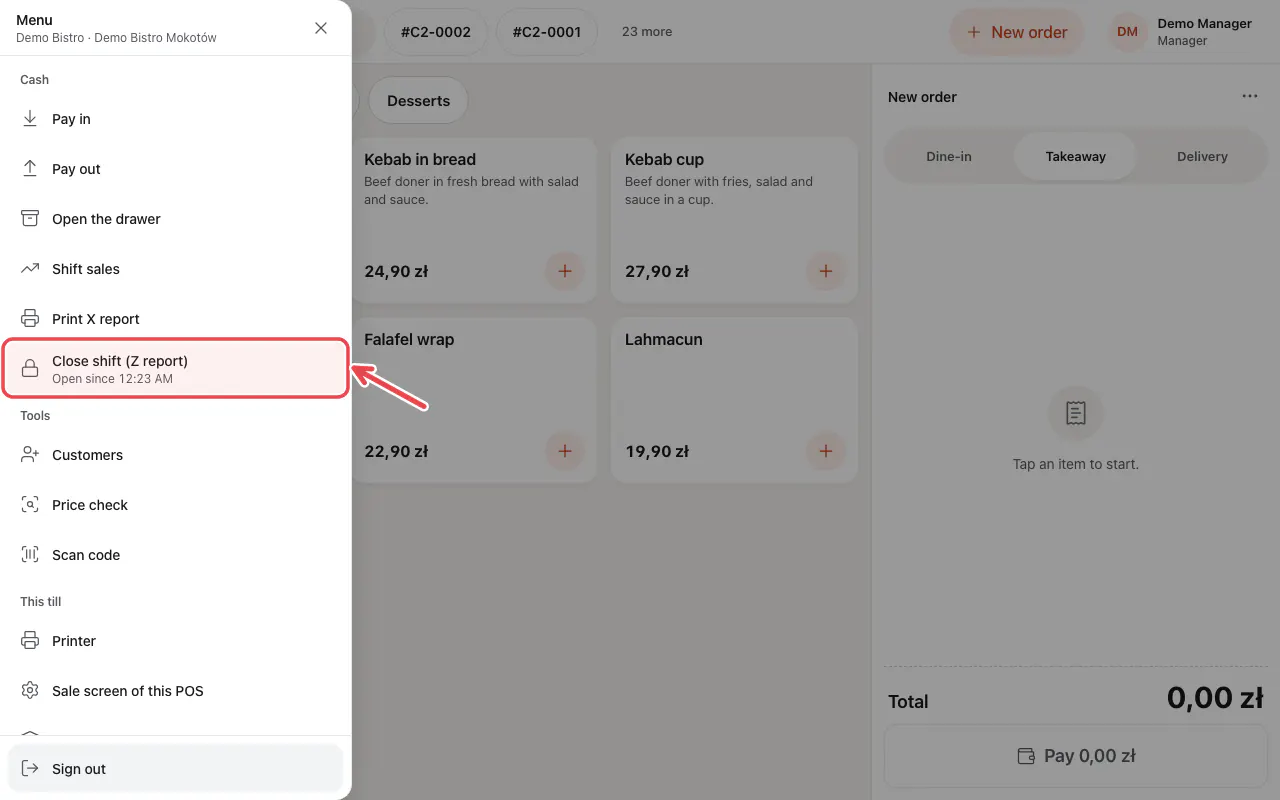
Open the menu (☰) and tap Close shift (Z report).
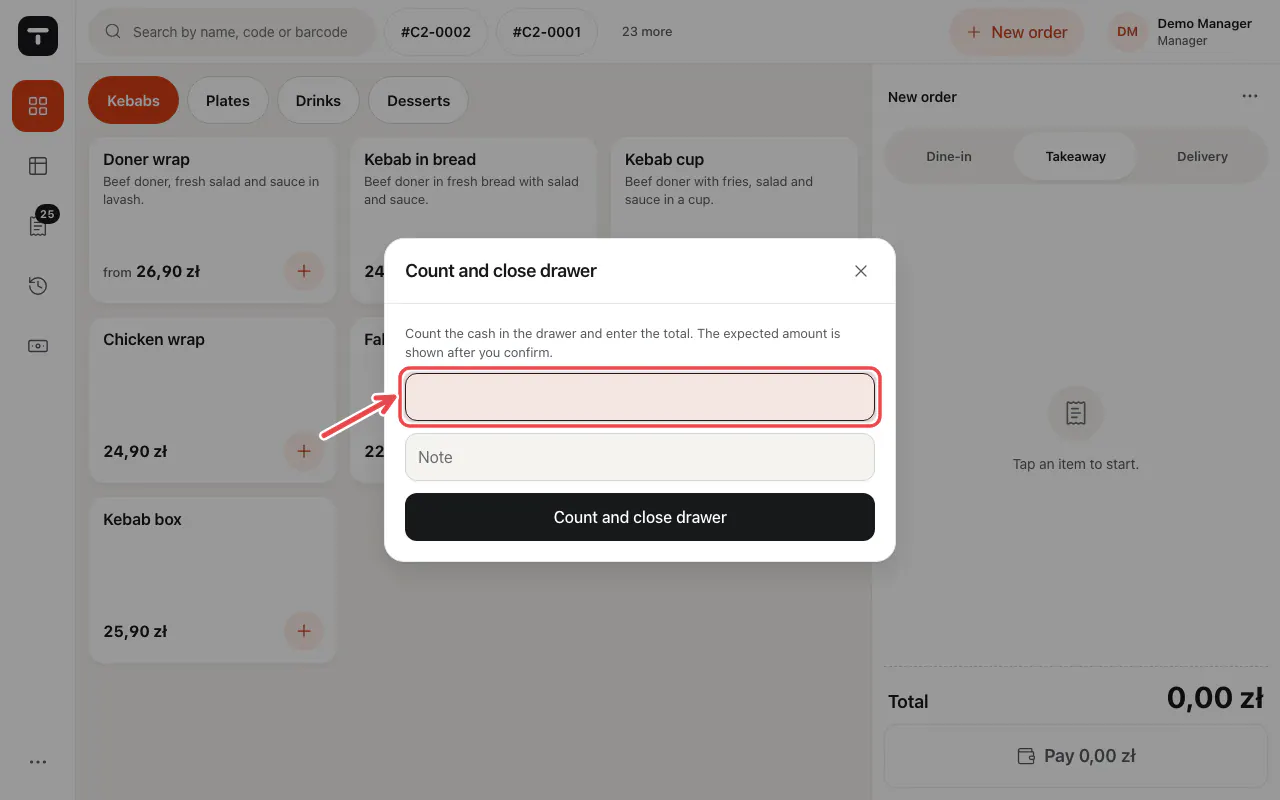
Count the cash in the drawer and enter the total. A manager may need to approve. After you confirm you see the expected amount and any difference.
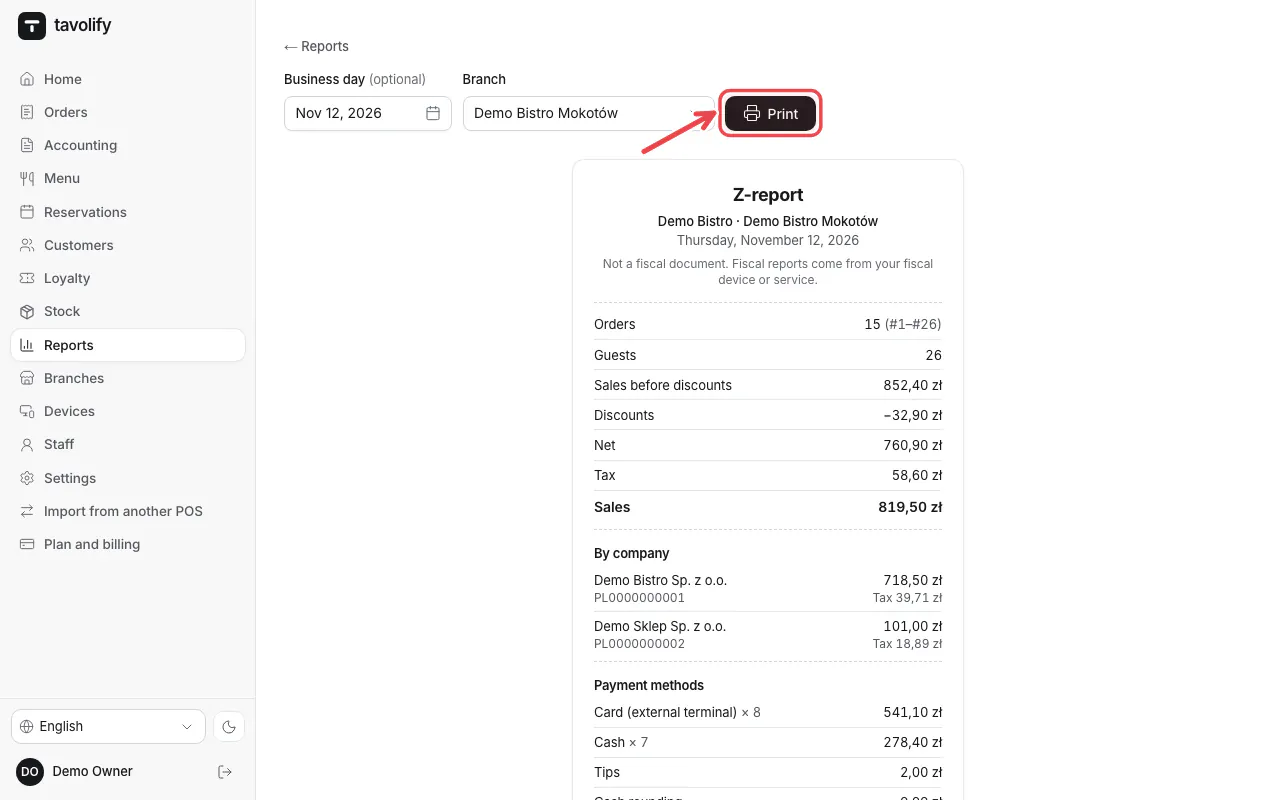
In the admin, Reports → Z-report shows the day per company, payment method and tax. Tap Print to print it.
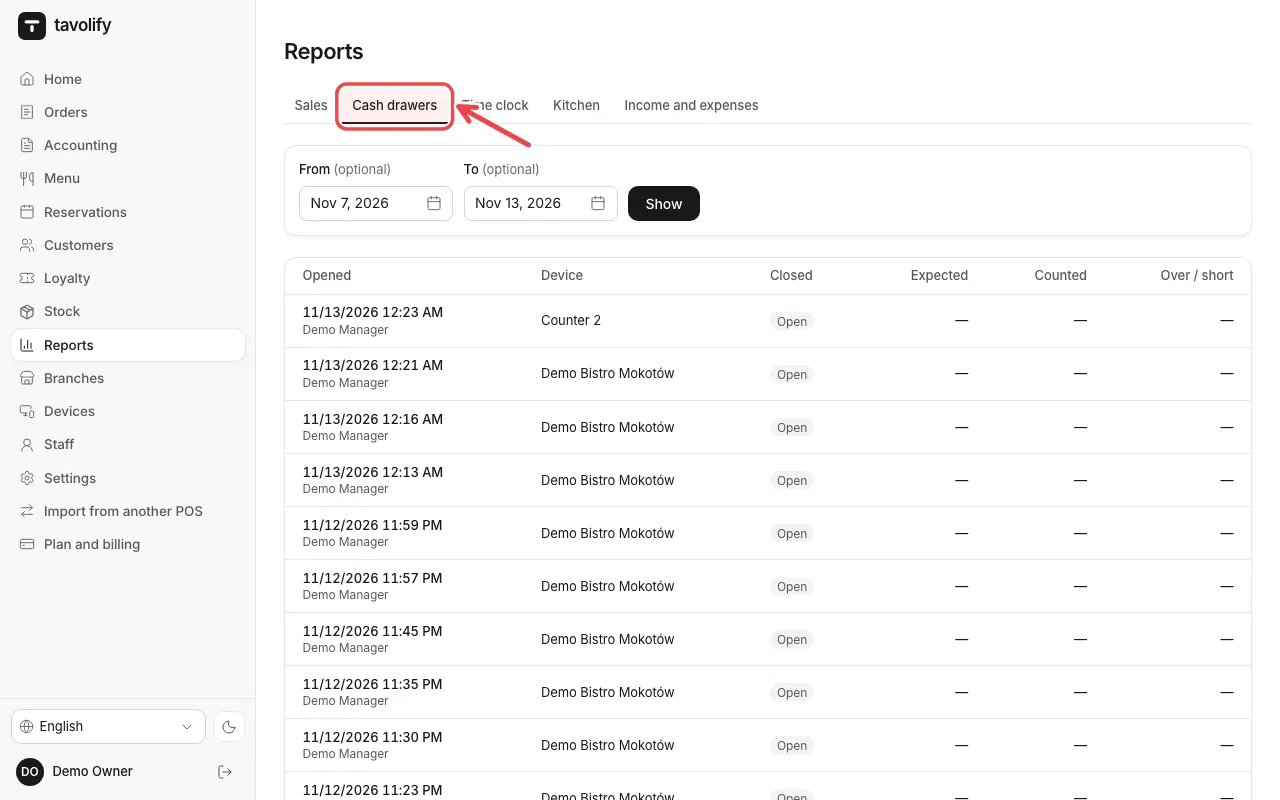
Cash drawers lists every shift with its count.
Related articles
- Open the shift and use the cash drawer
- Sales reports
- Connect a fiscal printer (Elzab, Posnet, Novitus)
Did this answer your question?
Still need help?Our team is happy to answer.
Send us a message