
Connect a tablet or computer as a POS
Pair a tablet, computer or Sunmi POS with Tavolify using a 6-digit code from Devices. Also for kitchen displays and kiosks.
1 min readUpdated November 13, 2026
Every screen you use (POS, kitchen display, kiosk, order-ready board) is paired once with a code from the admin.
Steps
Open Devices. Under Pair a device type a Name, for example "Counter 2".
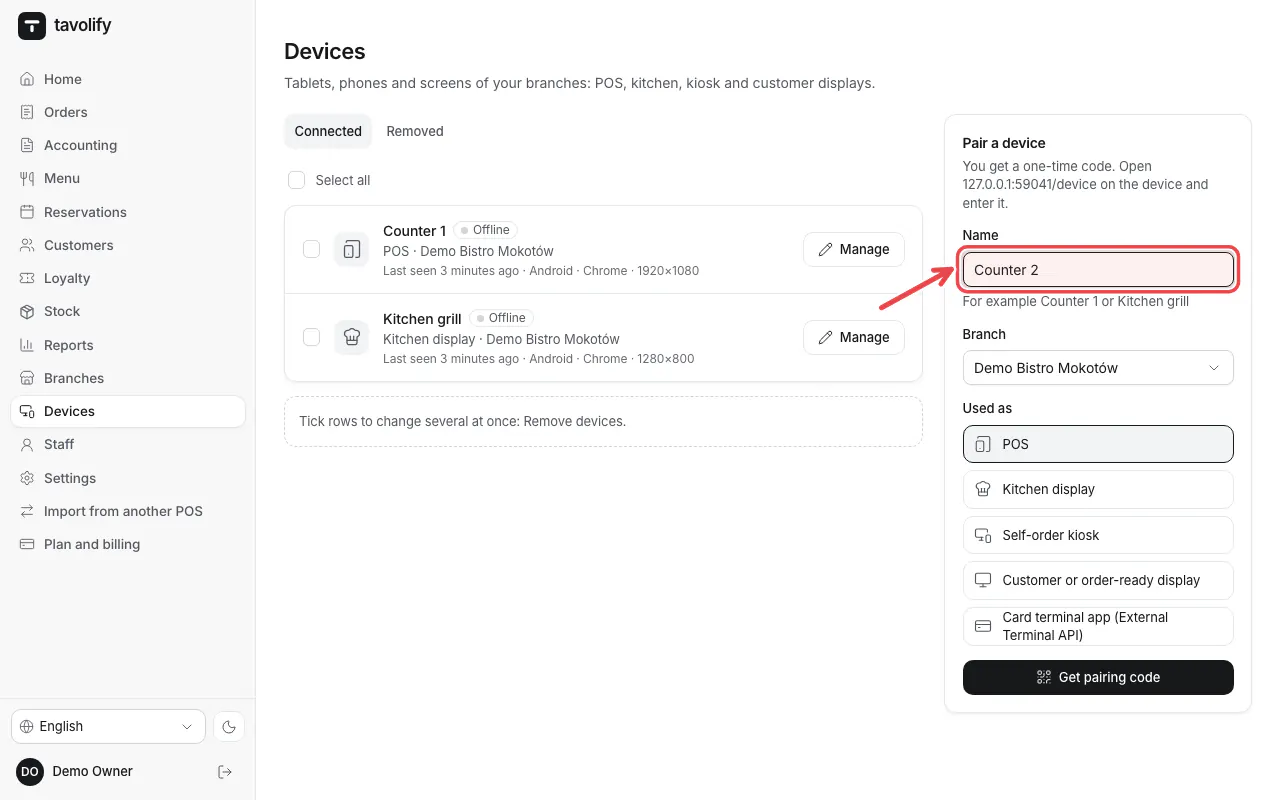
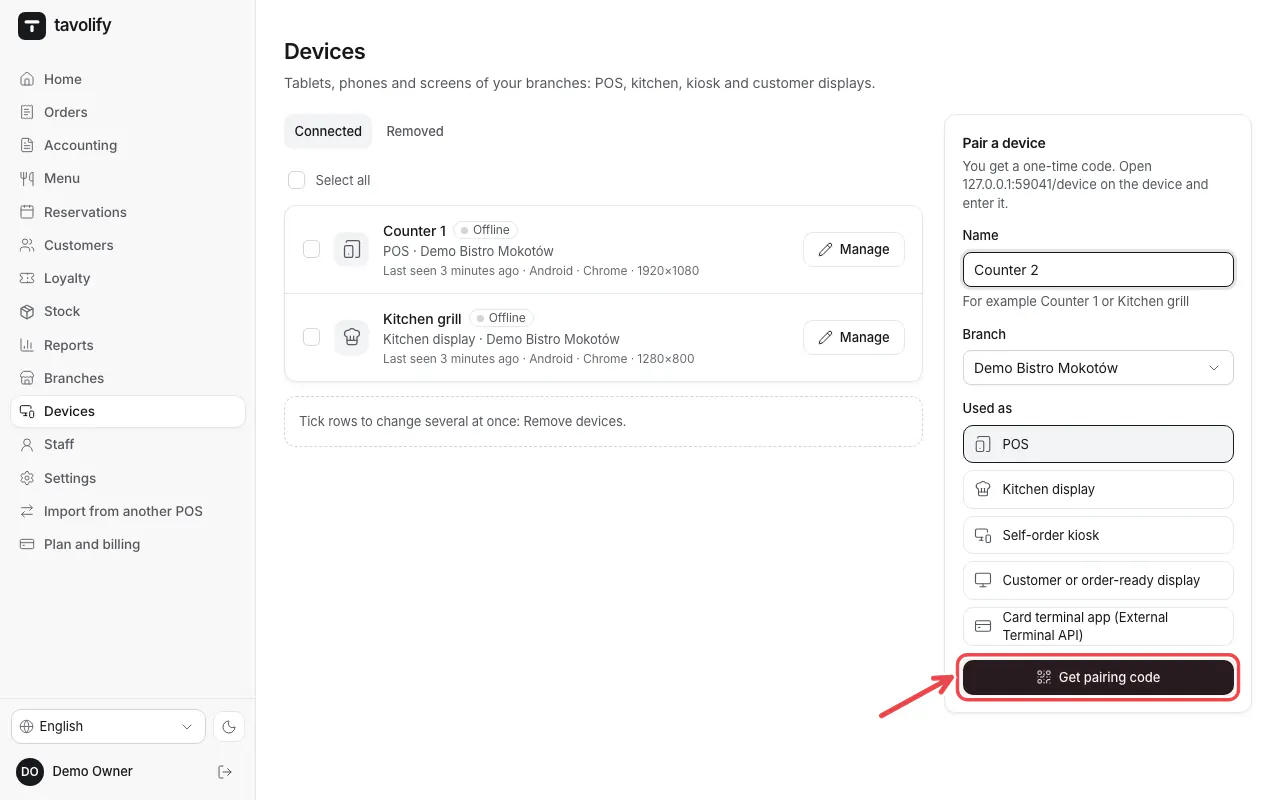
Choose what the device is used as, for example POS, then tap Get pairing code.
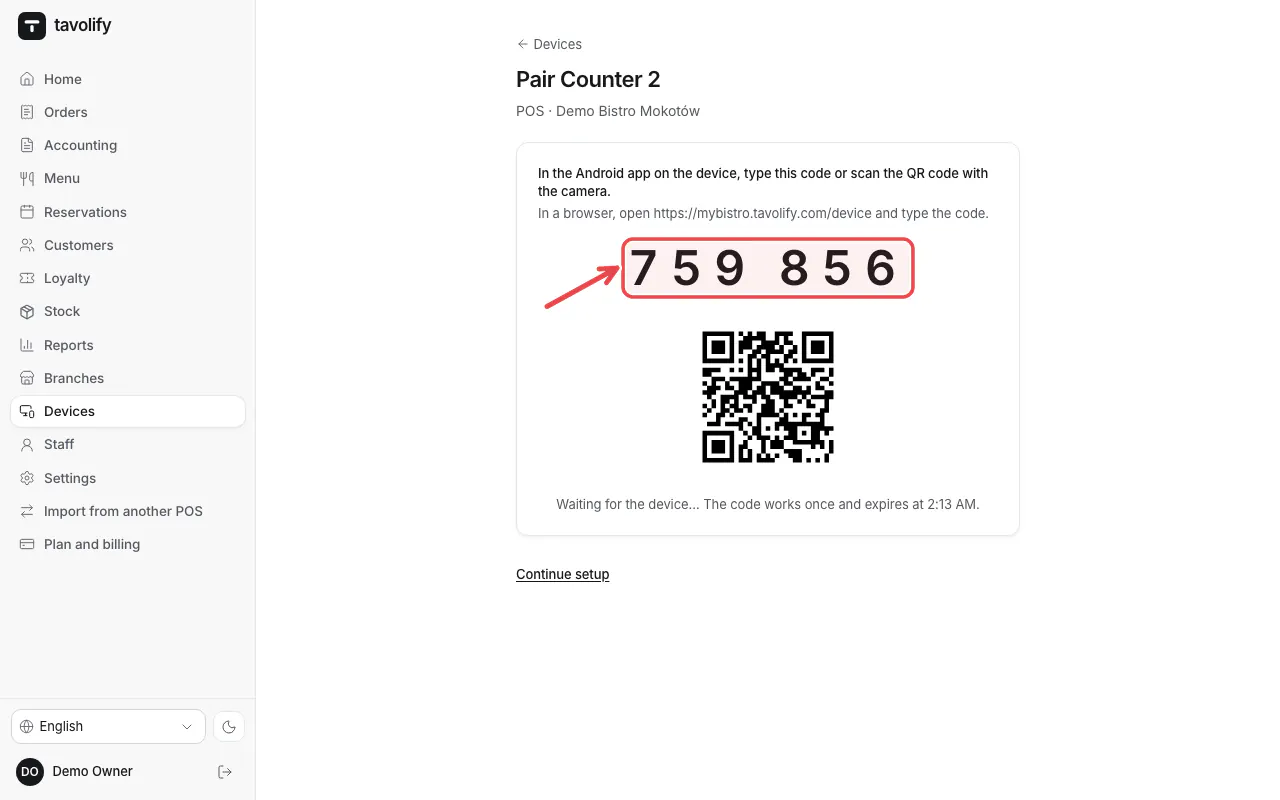
A 6-digit code appears. It is valid for a short time.
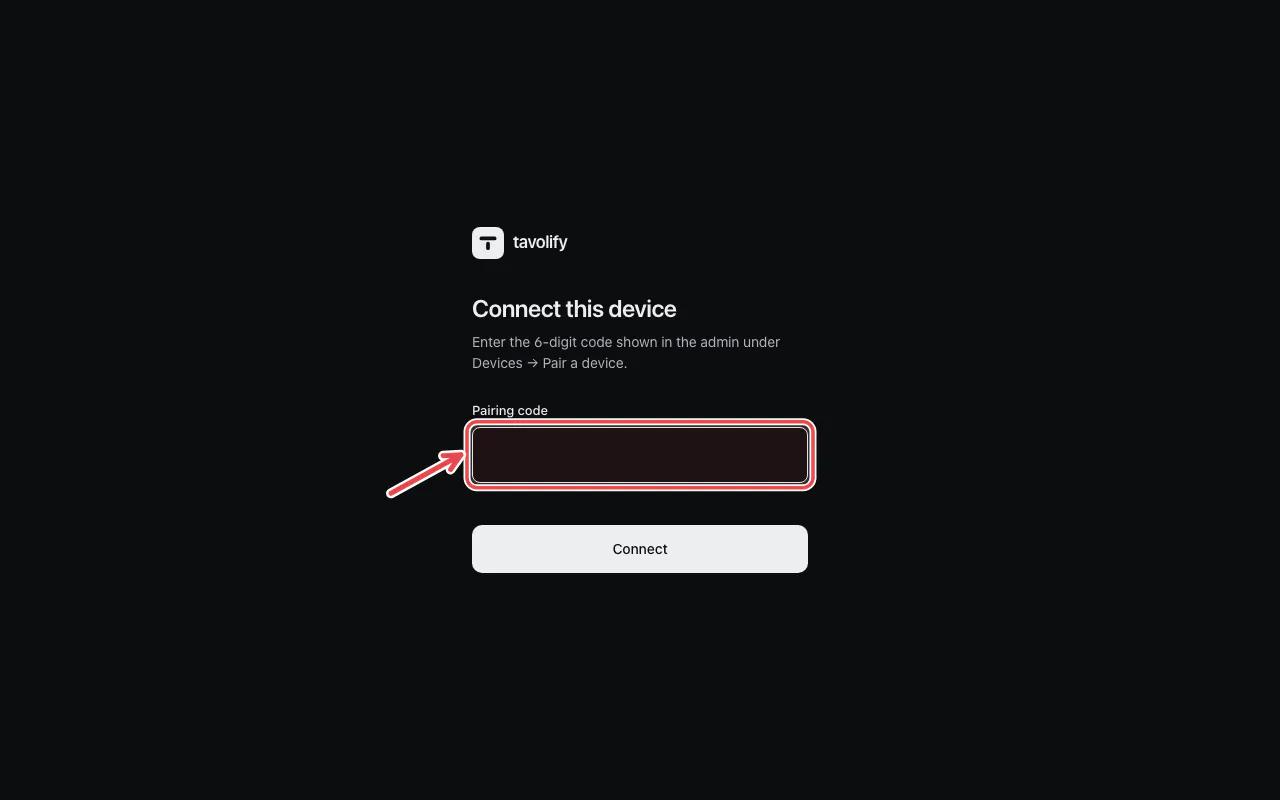
On the tablet open the Tavolify app (or tavolify.com/device in the browser), type the code and tap Connect.
Tip: Each device has Screen settings in Devices, for example its screen language.
Related articles
- Sign in on the POS with your PIN
- Install and update the Android app
- Set up the kitchen display
Did this answer your question?
Still need help?Our team is happy to answer.
Send us a message