
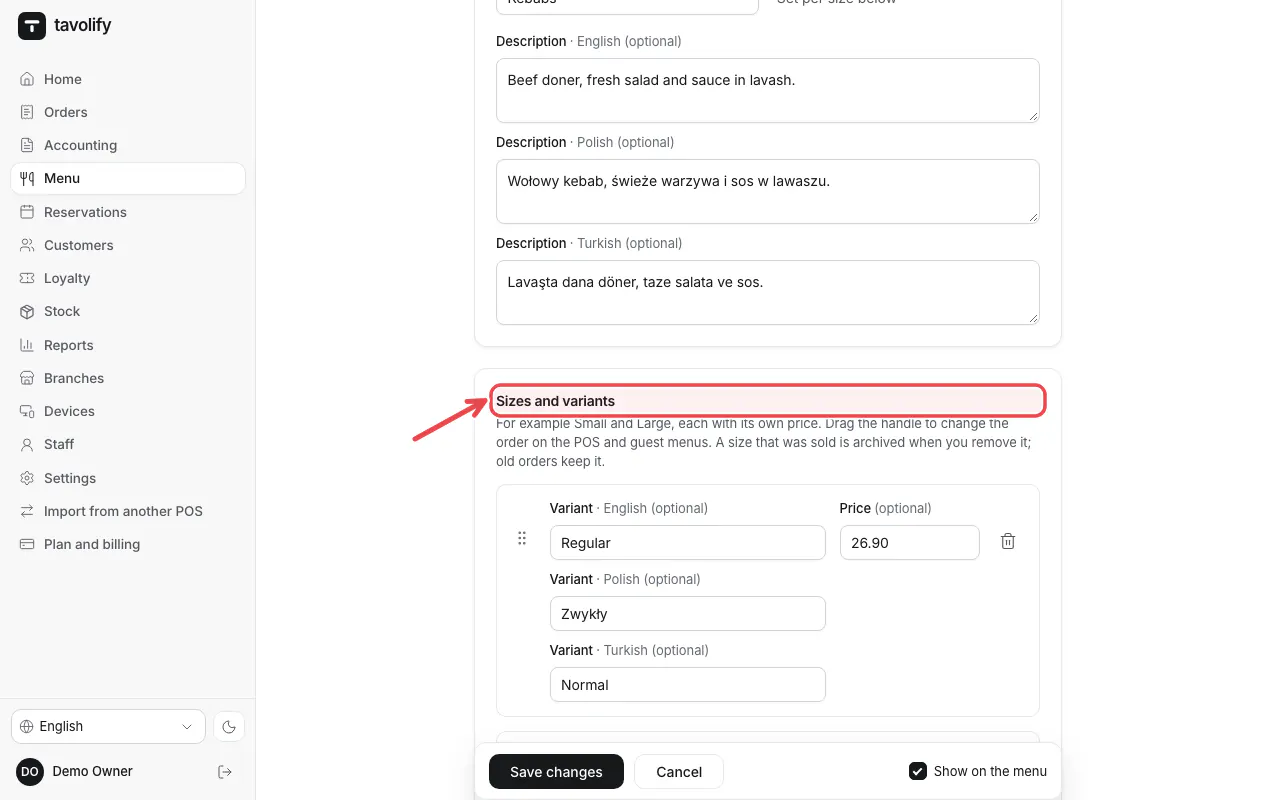
Sizes and variants
Add sizes or variants to a menu item in Tavolify, for example regular and large, each with its own price.
1 min readUpdated November 13, 2026
Use sizes when the same item comes in different portions, for example a regular and a large wrap.
Steps
Open the item. Find Sizes and variants.
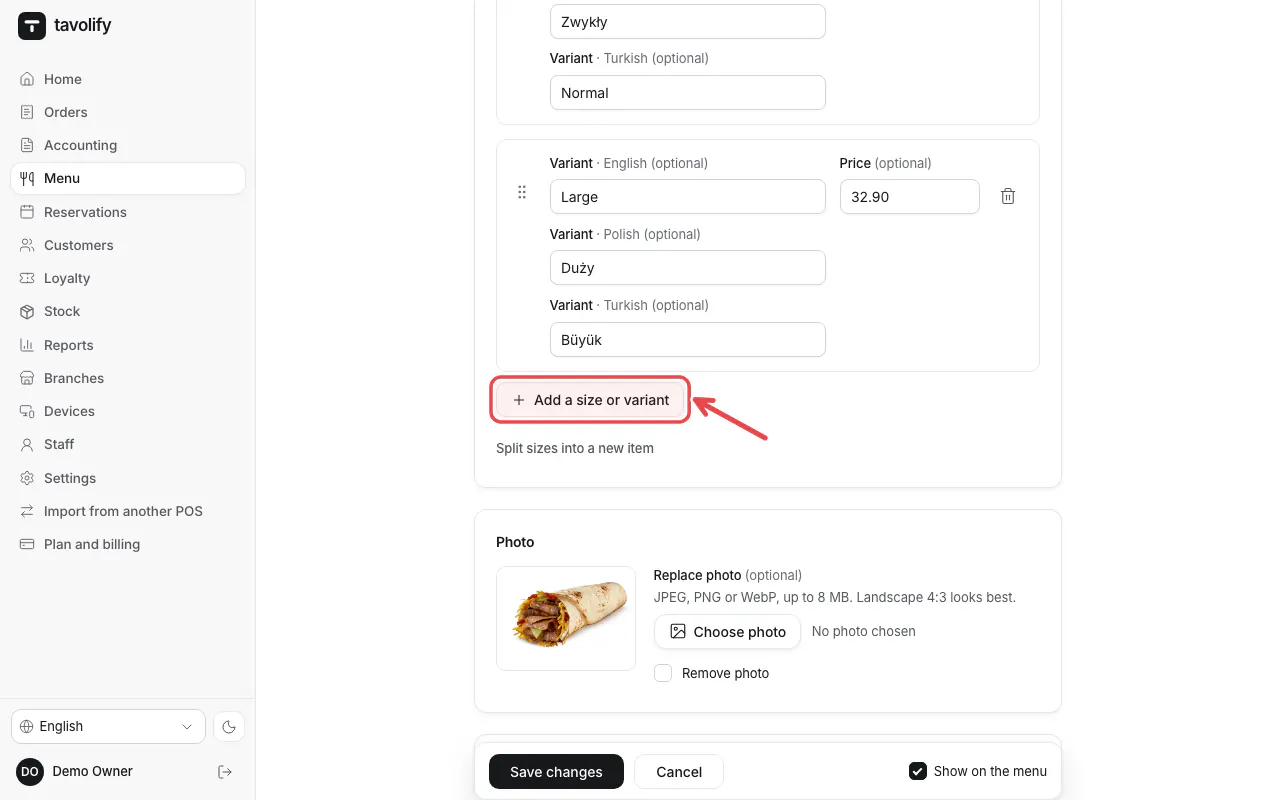
Tap Add a size or variant, type the name and the price. Drag the sizes into the order you want.
On the POS the cashier now picks the size before the item is added.
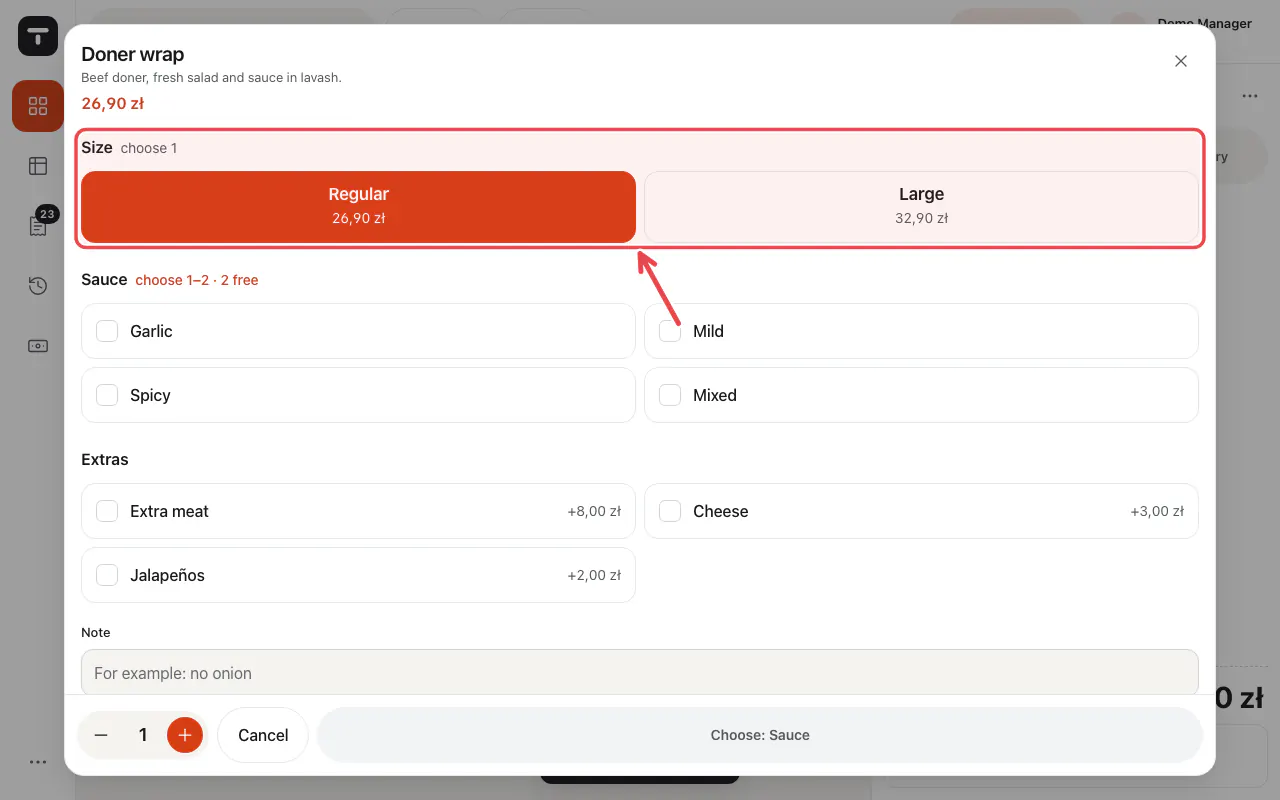
Tip: An item with sizes shows "from" and the lowest price on the POS.
Related articles
- Add a menu item
- Modifier groups: sauces, extras and options
- Take an order
Did this answer your question?
Still need help?Our team is happy to answer.
Send us a message