
Import and export the menu
Import your menu into Tavolify from a CSV file or a photo of a paper menu, check it before saving, and export it as CSV.
1 min readUpdated November 13, 2026
You do not need to type a long menu by hand. Import a file, check the preview, then save.
Steps
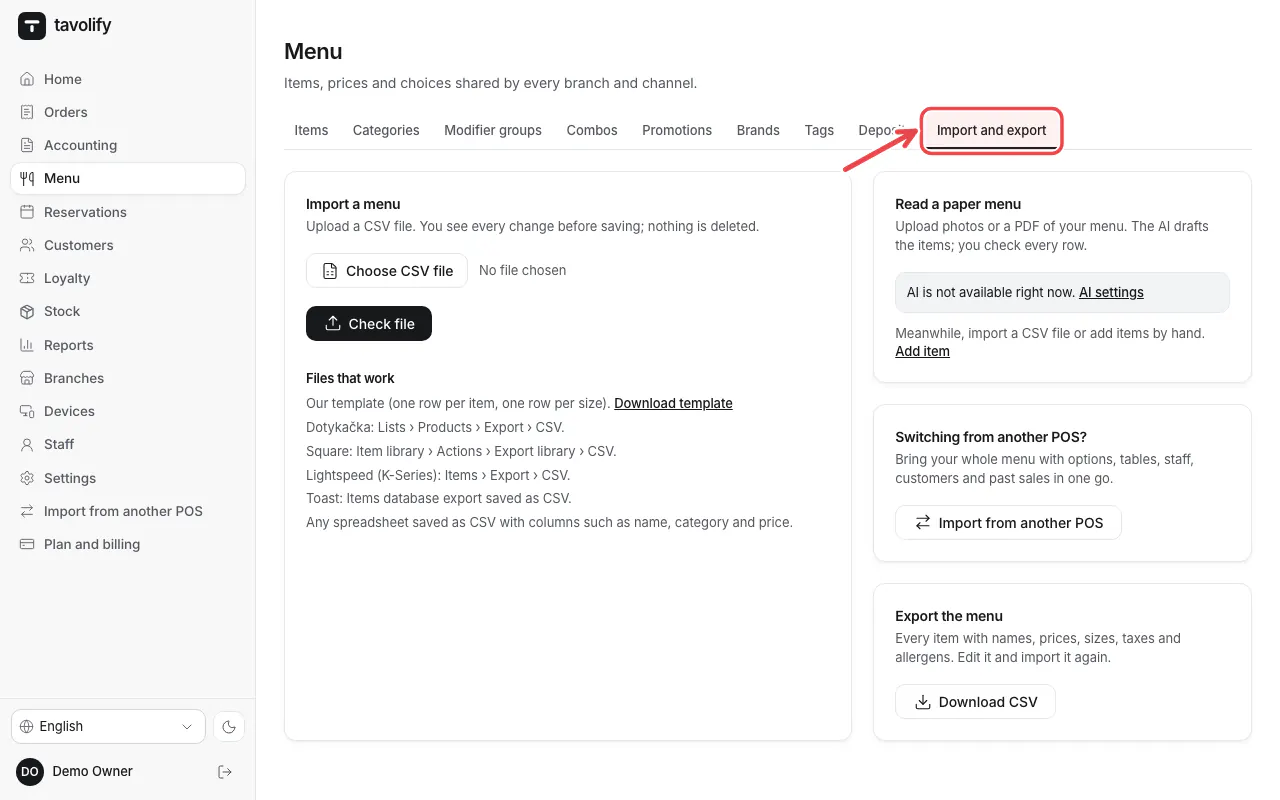
Open Menu → Import and export.
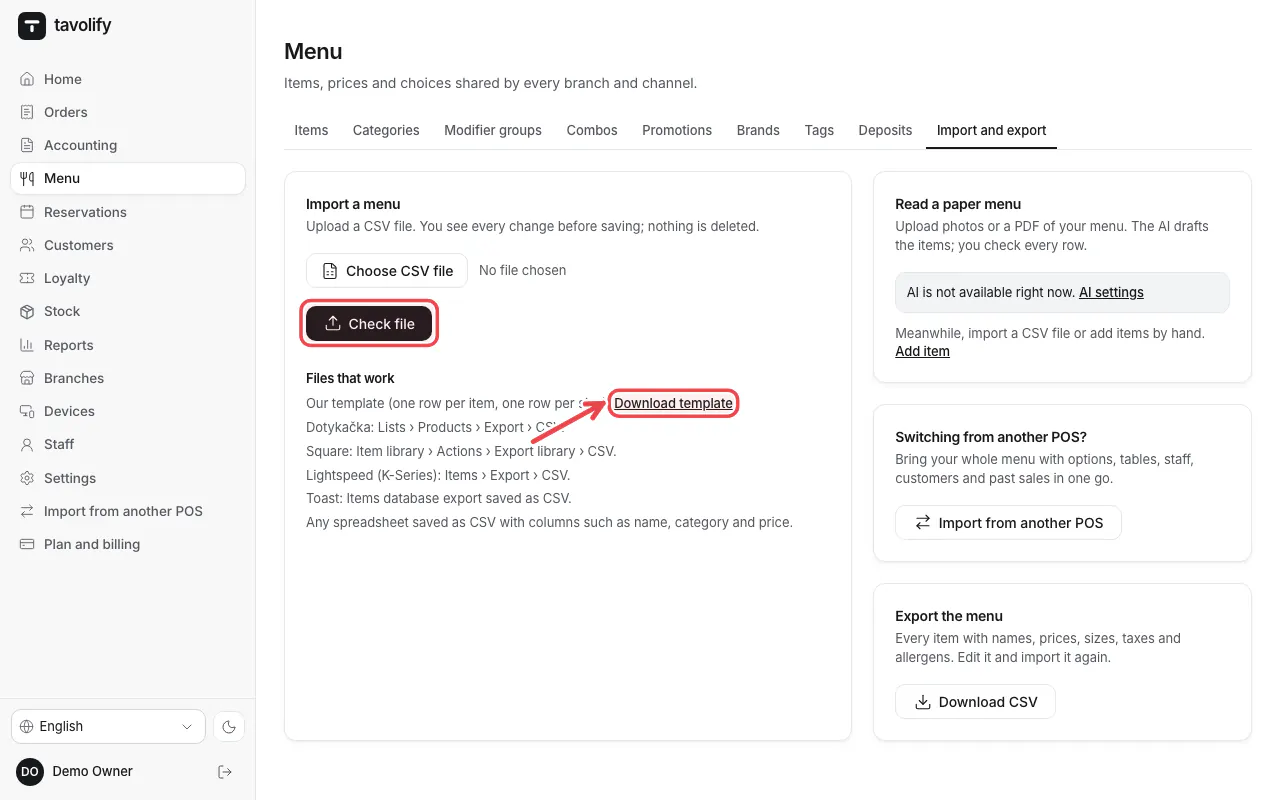
Tap Download template, fill it in, then choose the file and tap Check file. You see a preview before anything is saved.
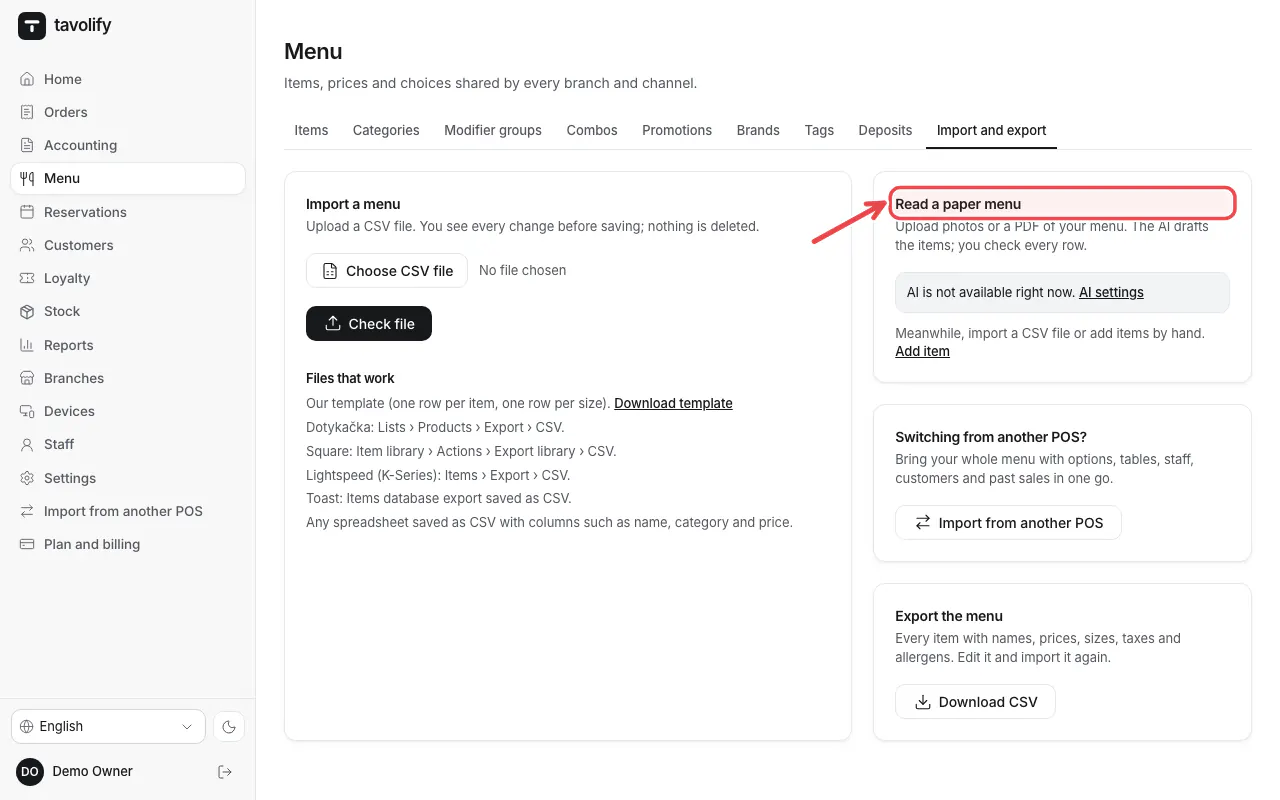
Have only a paper menu? Under Read a paper menu upload photos or a PDF; the items, prices and options are drafted for you to check.
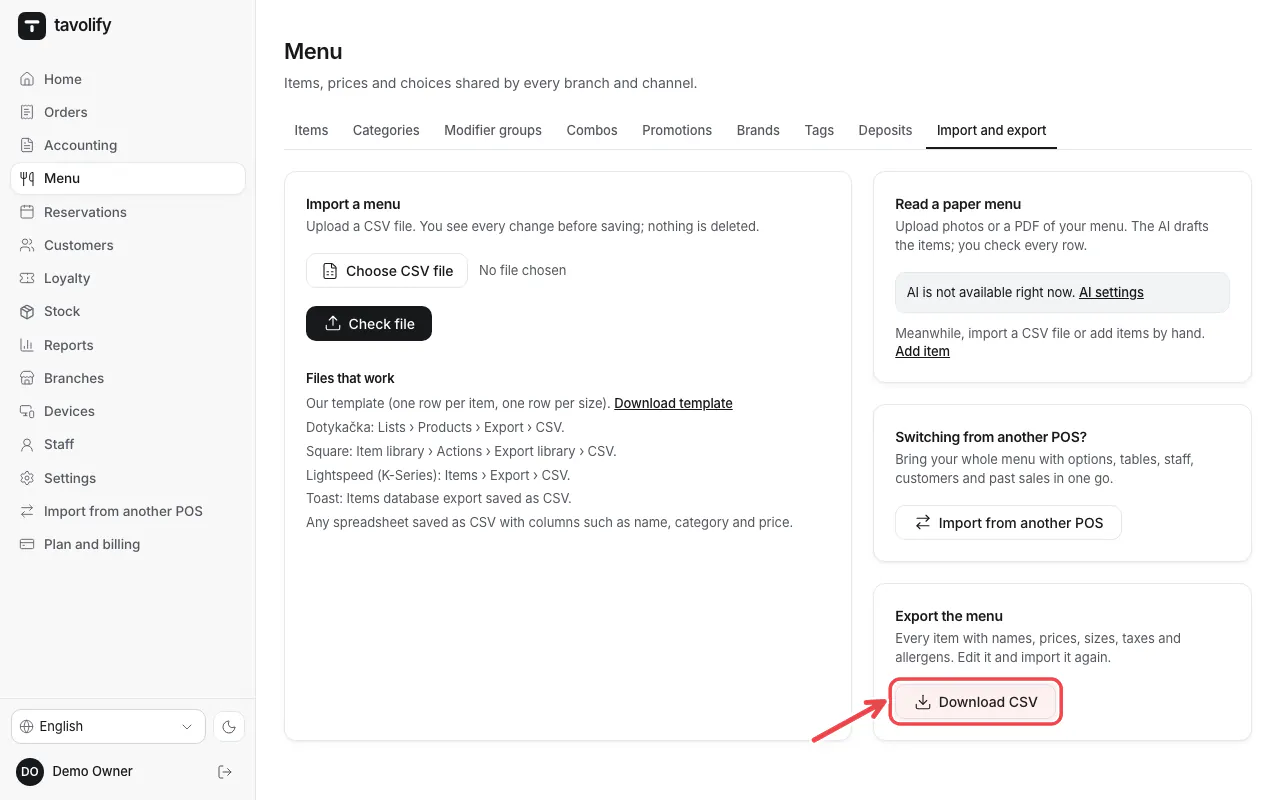
Under Export the menu tap Download CSV to get the whole menu as a spreadsheet.
Related articles
- Add a menu item
- Move from another POS
- Add and sort menu categories
Did this answer your question?
Still need help?Our team is happy to answer.
Send us a message