
Add a menu item
Add a dish or drink to your Tavolify menu: name in each language, category, price, photo and modifier groups.
1 min readUpdated November 13, 2026
Every dish and drink you sell is an item. One item shows everywhere: POS, kiosk, QR menu and online ordering.
Steps
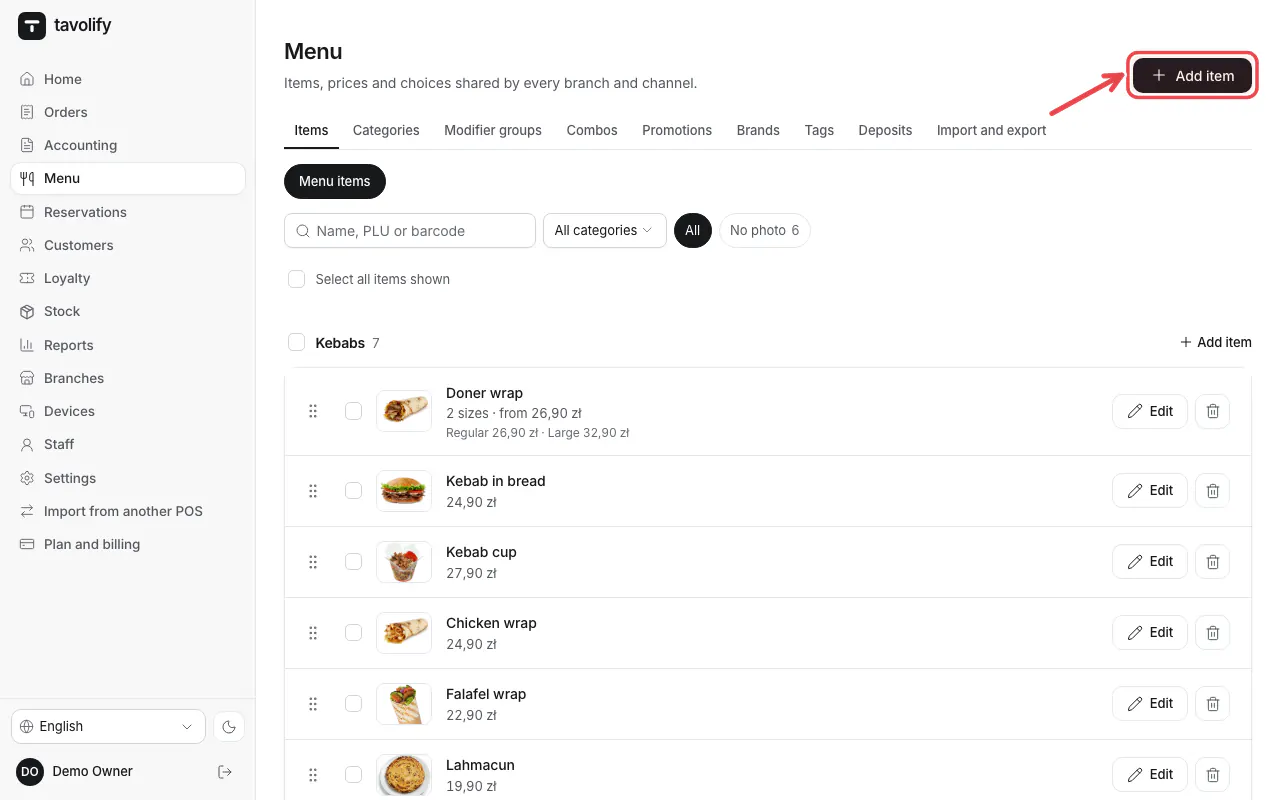
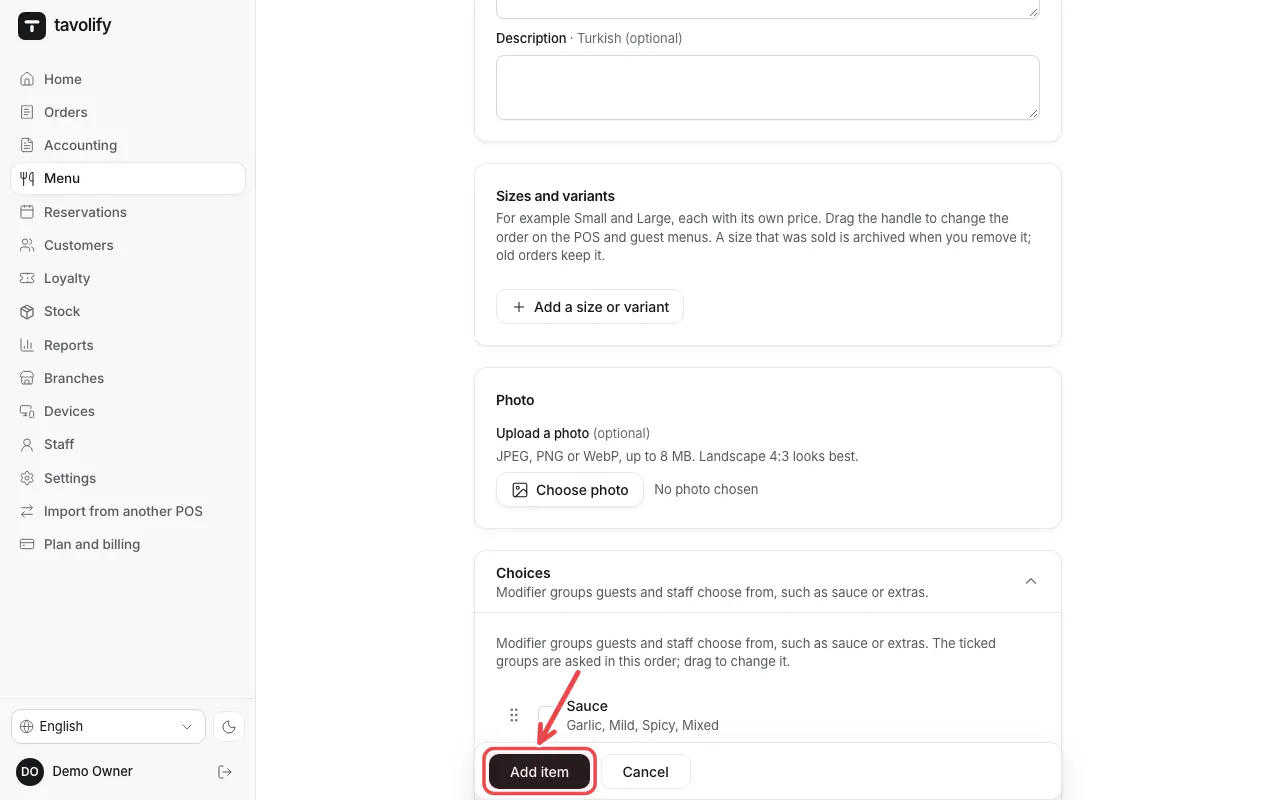
Open Menu. On Items tap Add item.
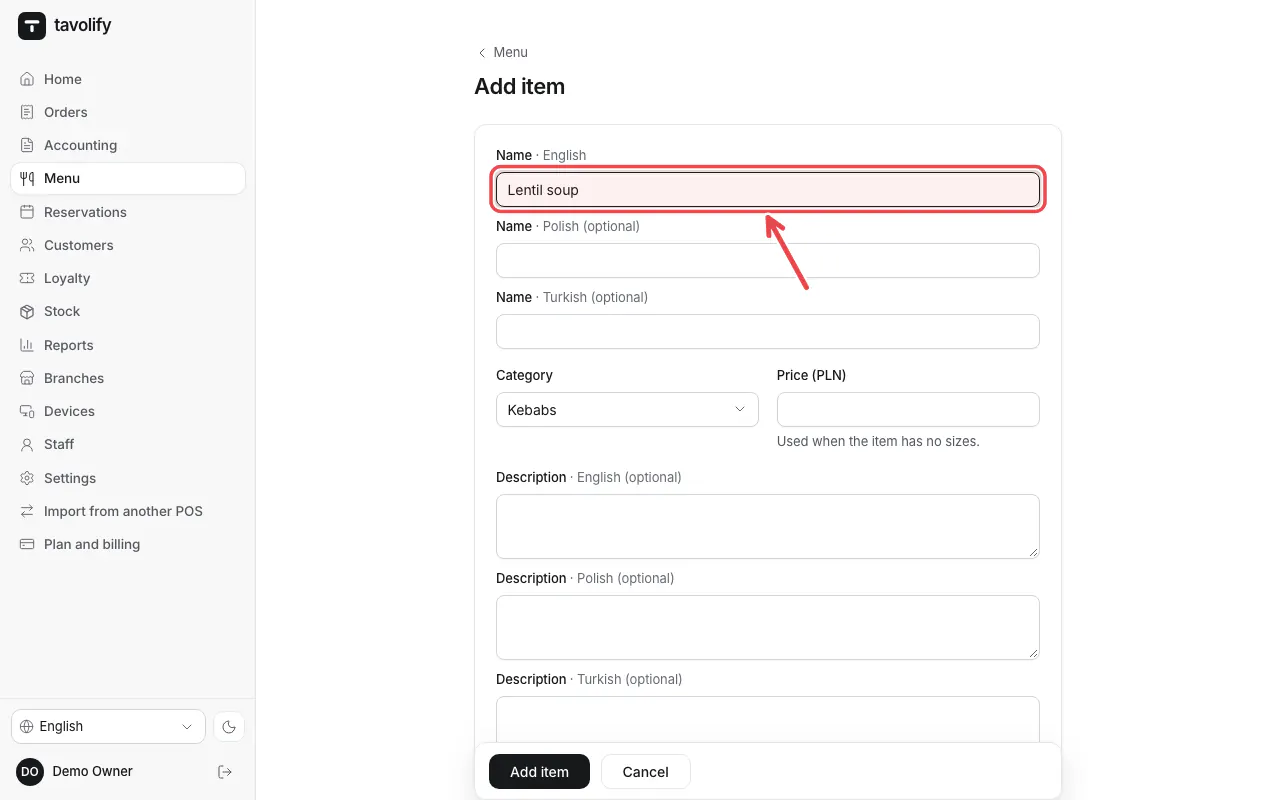
Type the name (for example "Lentil soup") in each menu language, choose the Category and enter the price.
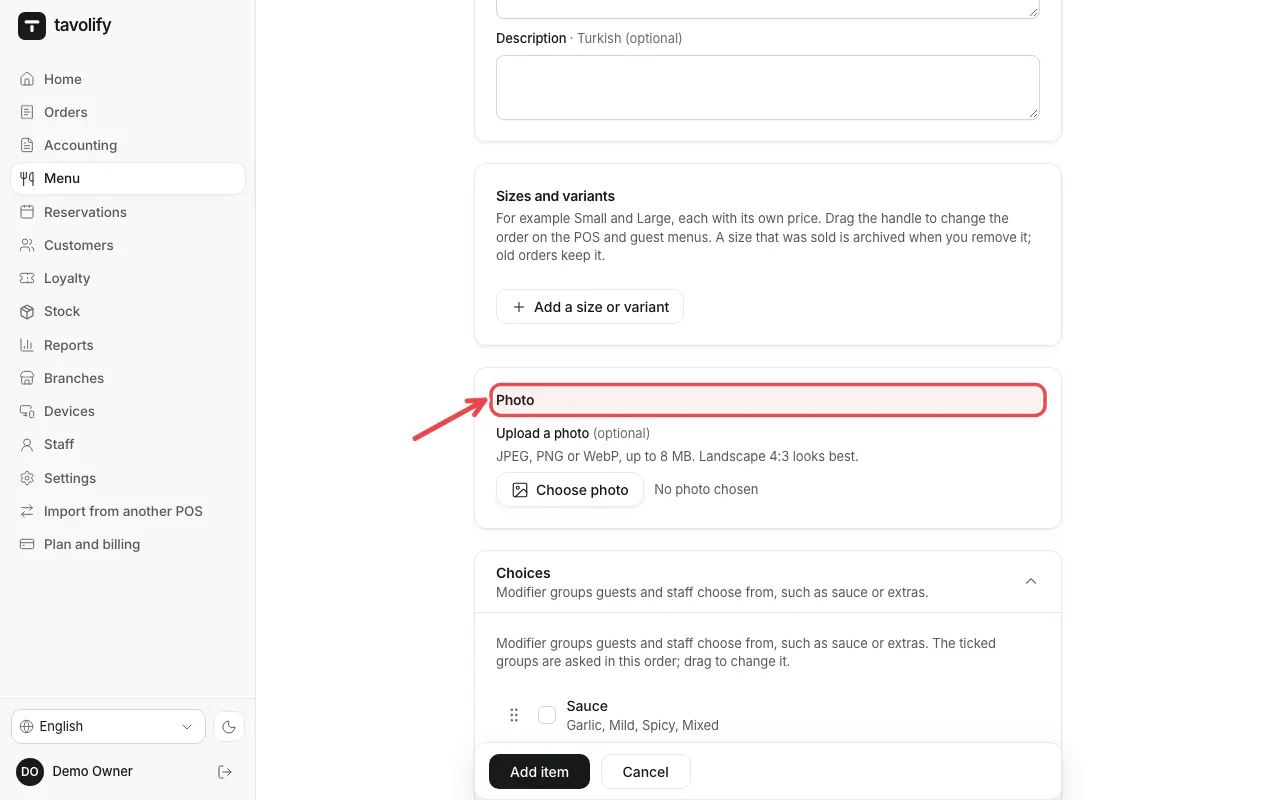
Add a photo under Photo. Photos help guests on the kiosk and online.
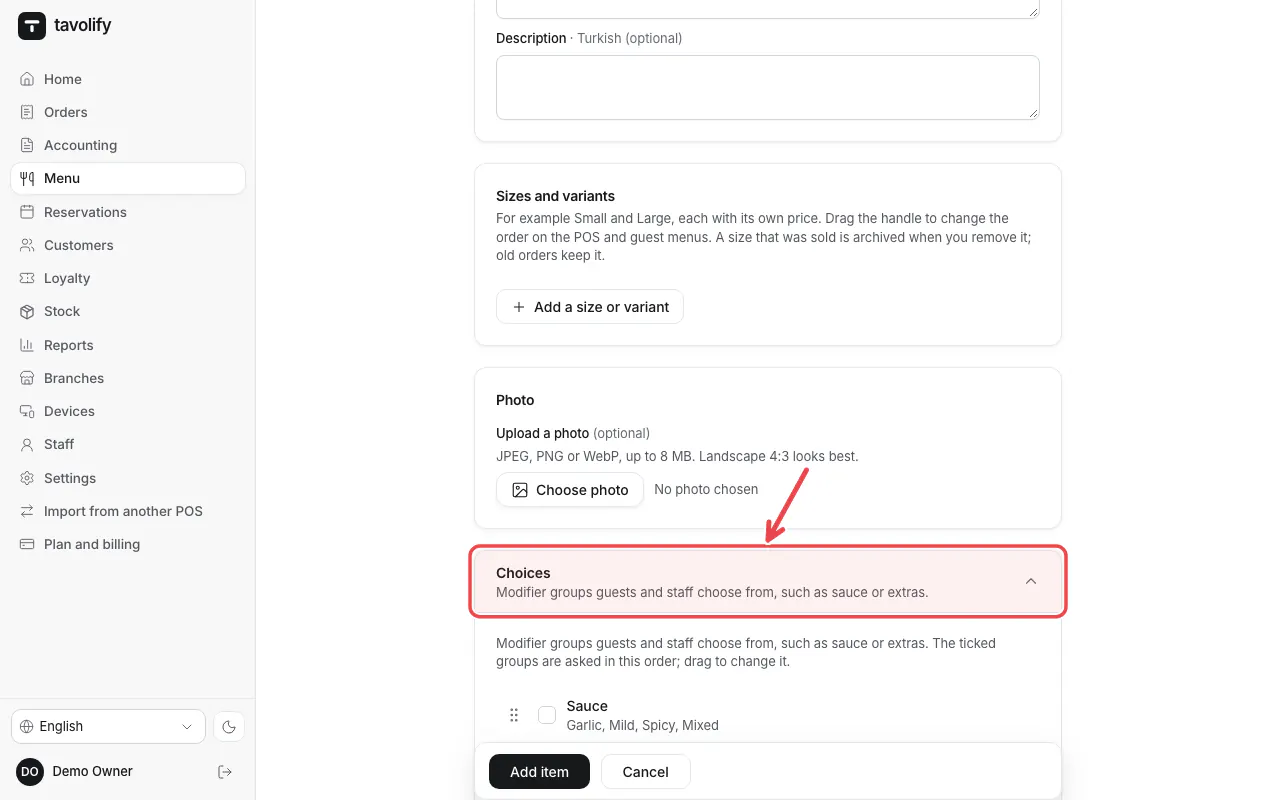
Under Choices tick the modifier groups the item uses, for example a sauce.
Tap Add item to save.
Tip: More options are folded below: allergens, prices per order type, tax, codes and stock. Open them only when you need them.
Related articles
- Sizes and variants
- Modifier groups: sauces, extras and options
- Allergens and diet labels
- Different prices per order type and branch
Did this answer your question?
Still need help?Our team is happy to answer.
Send us a message