
Roles and permissions
Create roles in Tavolify and tick exactly what each role may do: voids, refunds, discounts, reports, menu and settings.
1 min readUpdated November 13, 2026
Roles control what people may do. A manager can approve things a cashier may not do alone.
Steps
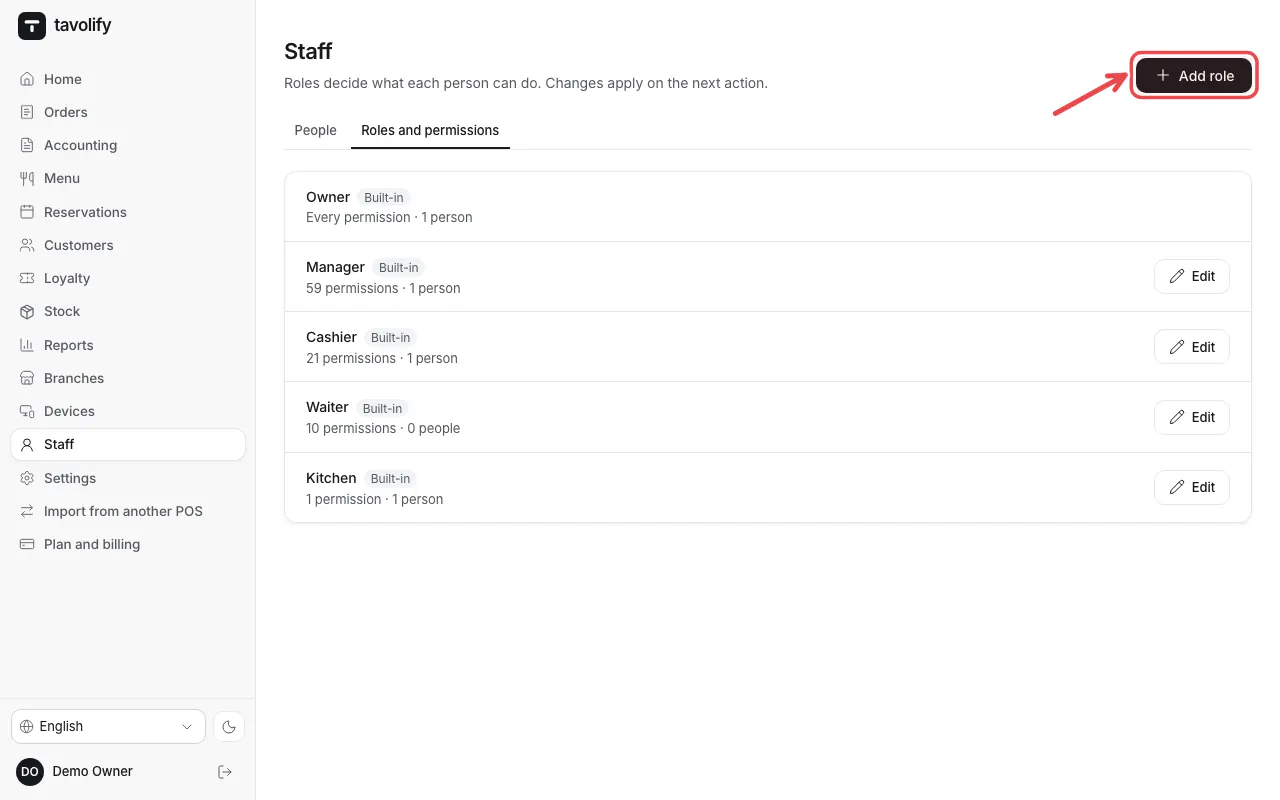
Open Staff → Roles and permissions and tap Add role.
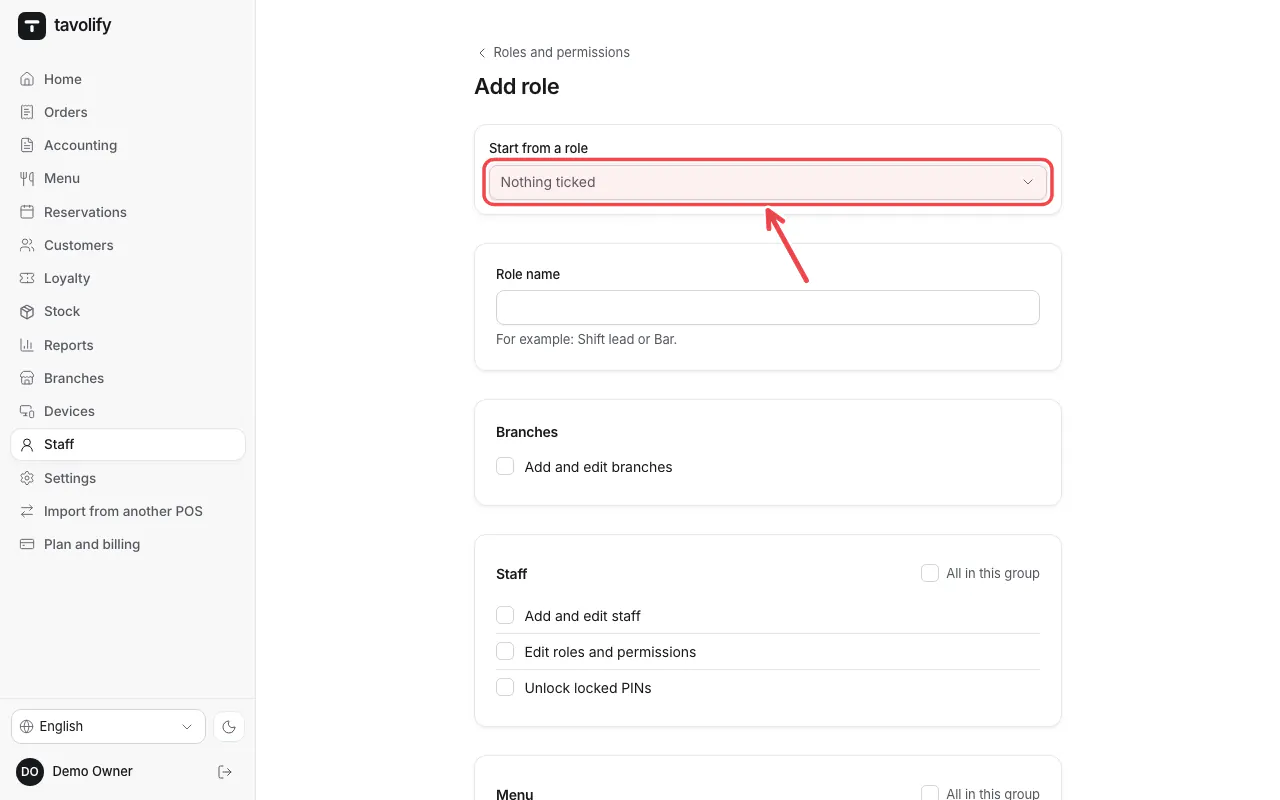
Choose Start from a role to copy one, then tick the permissions in each group.
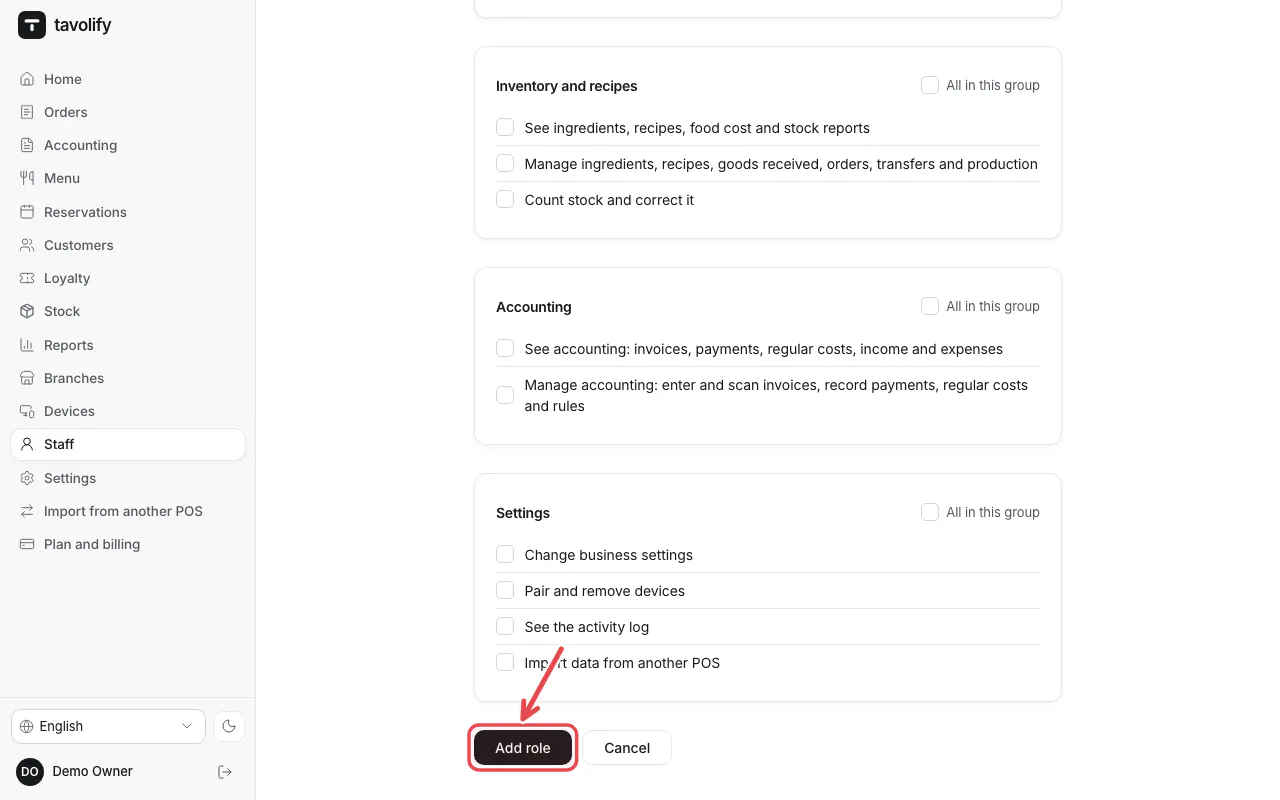
Tap Add role to save.
Related articles
- Add staff and set POS PINs
- Discounts on an item or the whole bill
- Refund a bill
Did this answer your question?
Still need help?Our team is happy to answer.
Send us a message