
Add staff and set POS PINs
Add staff in Tavolify, choose roles and branches, set a POS PIN, a staff card and the highest discount they may give.
1 min readUpdated November 13, 2026
Each person has their own account and PIN, so every sale and void is under their name.
Steps
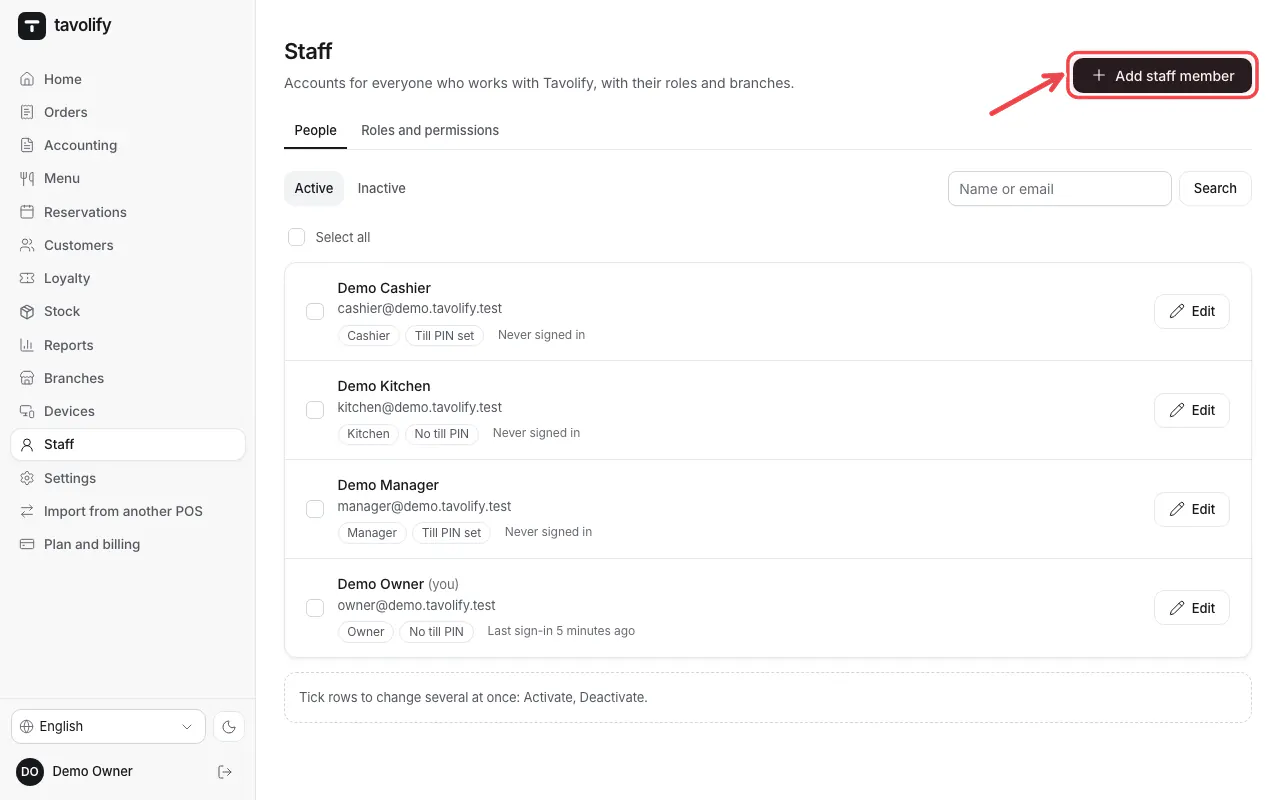
Open Staff and tap Add staff member.
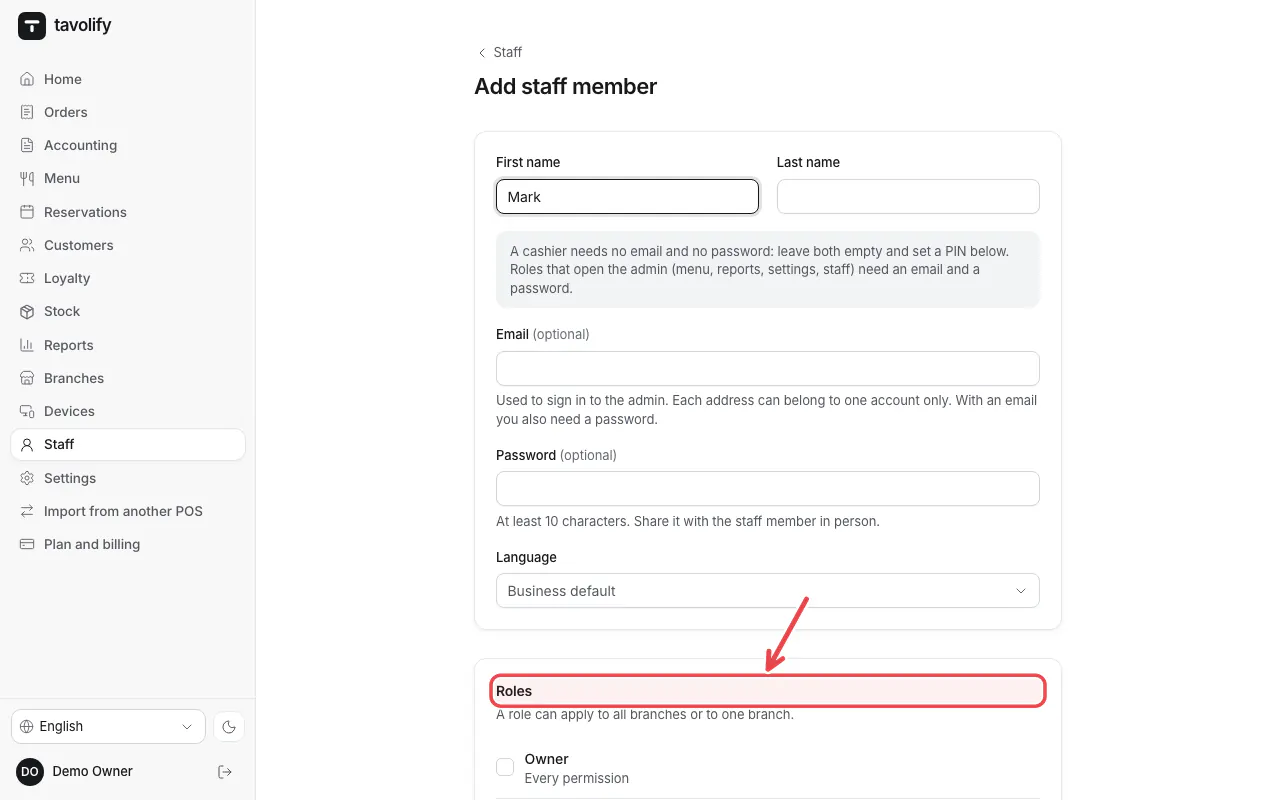
Type the name (for example "Mark"). Under Roles tick the role and the branch.
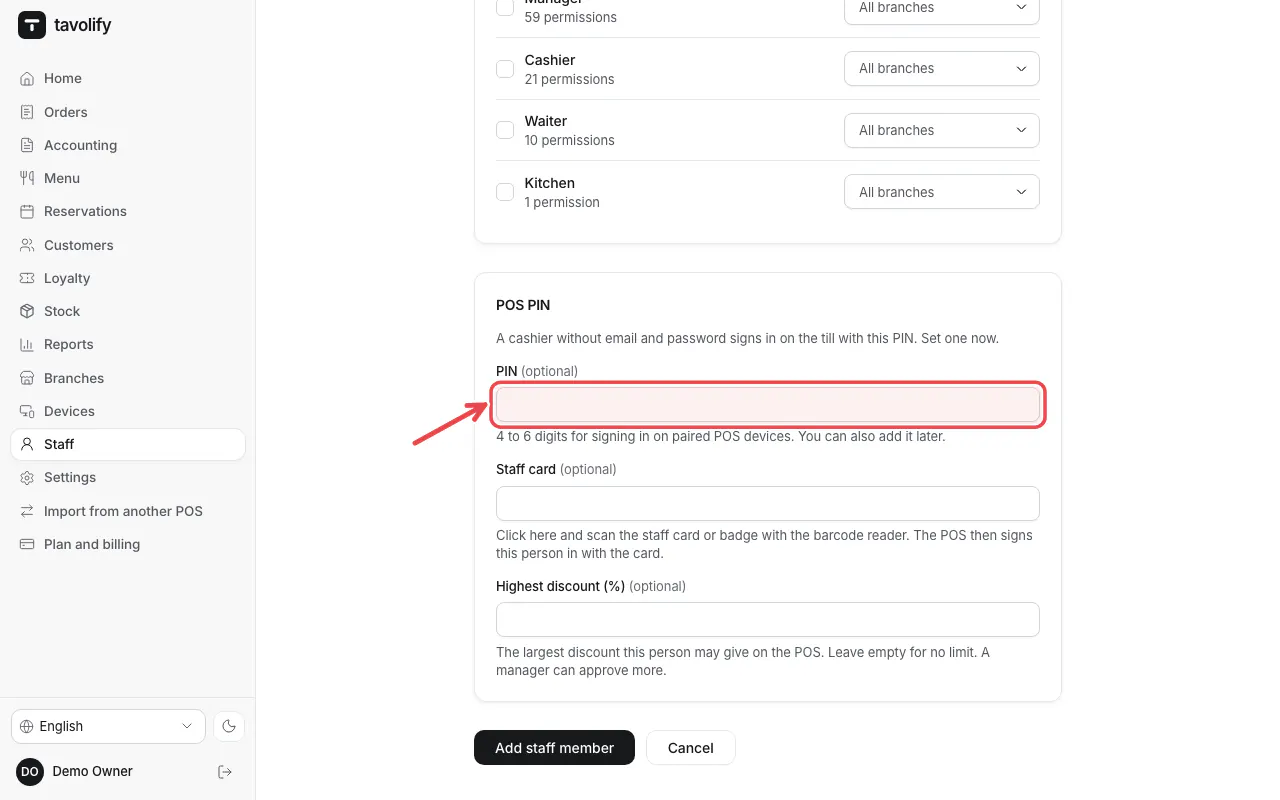
Under POS PIN enter a 4–6 digit PIN.
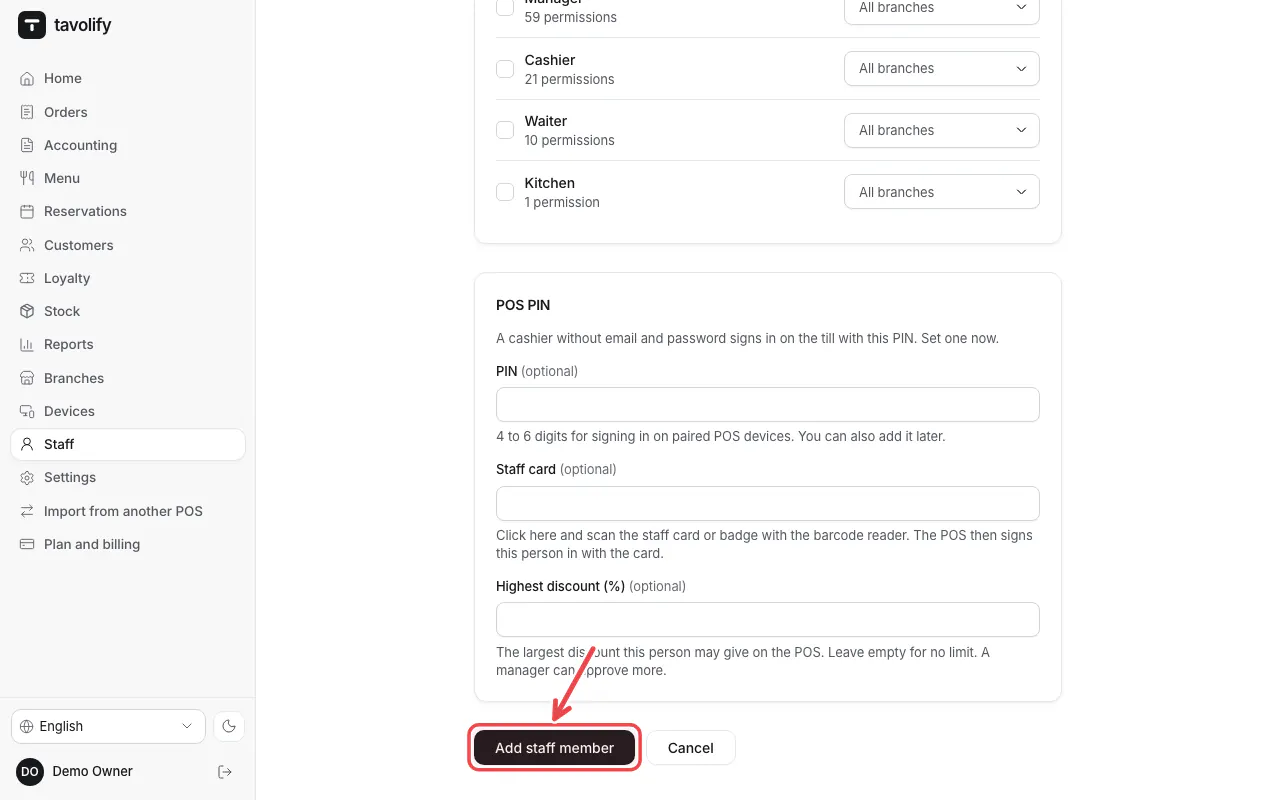
Tap Add staff member.
Tip: E-mail and password are only needed for people who use the admin.
Related articles
- Roles and permissions
- Sign in on the POS with your PIN
- Branches
Did this answer your question?
Still need help?Our team is happy to answer.
Send us a message