
Set up the kitchen display
Pair a screen as a Tavolify kitchen display, see orders arrive from the POS, kiosk and online, and tap Done when they are ready.
1 min readUpdated November 13, 2026
The kitchen display shows every order the moment it is sent, with how long it is waiting.
Steps
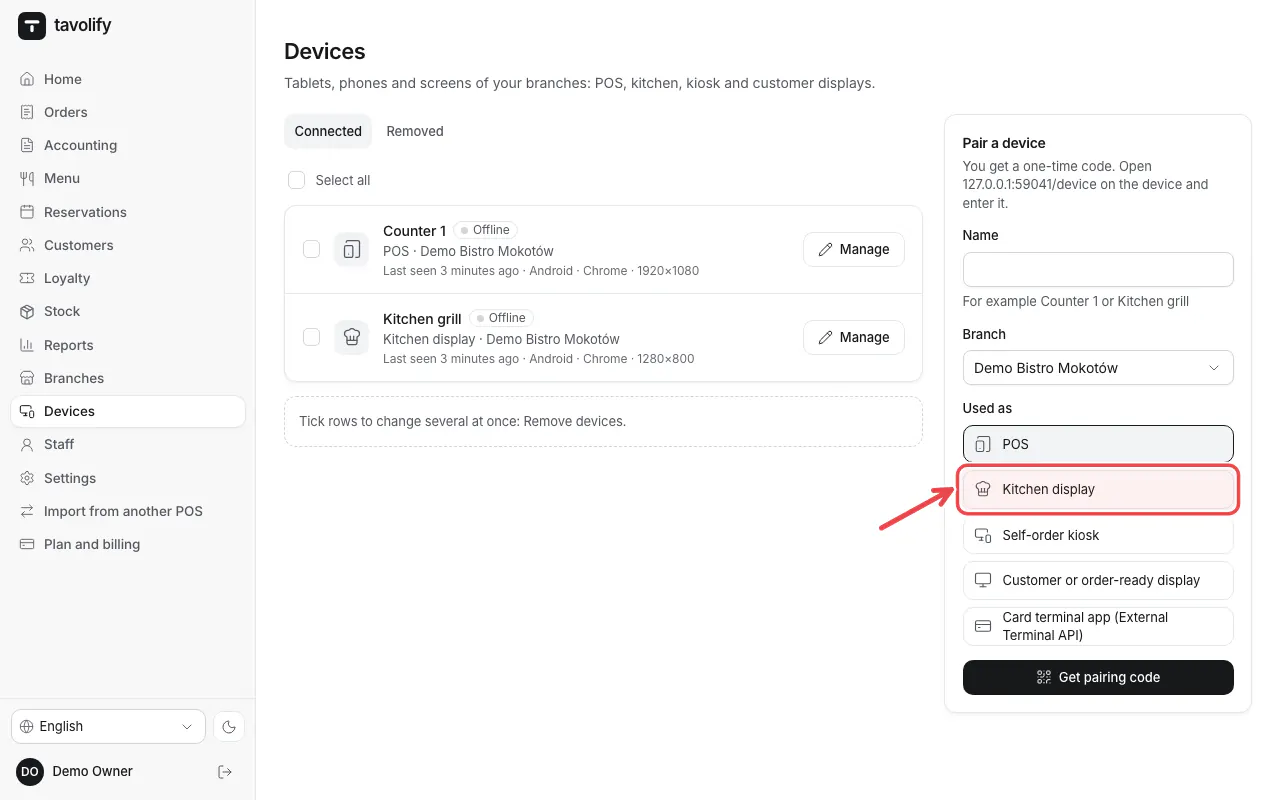
In Devices pair a device as Kitchen display.
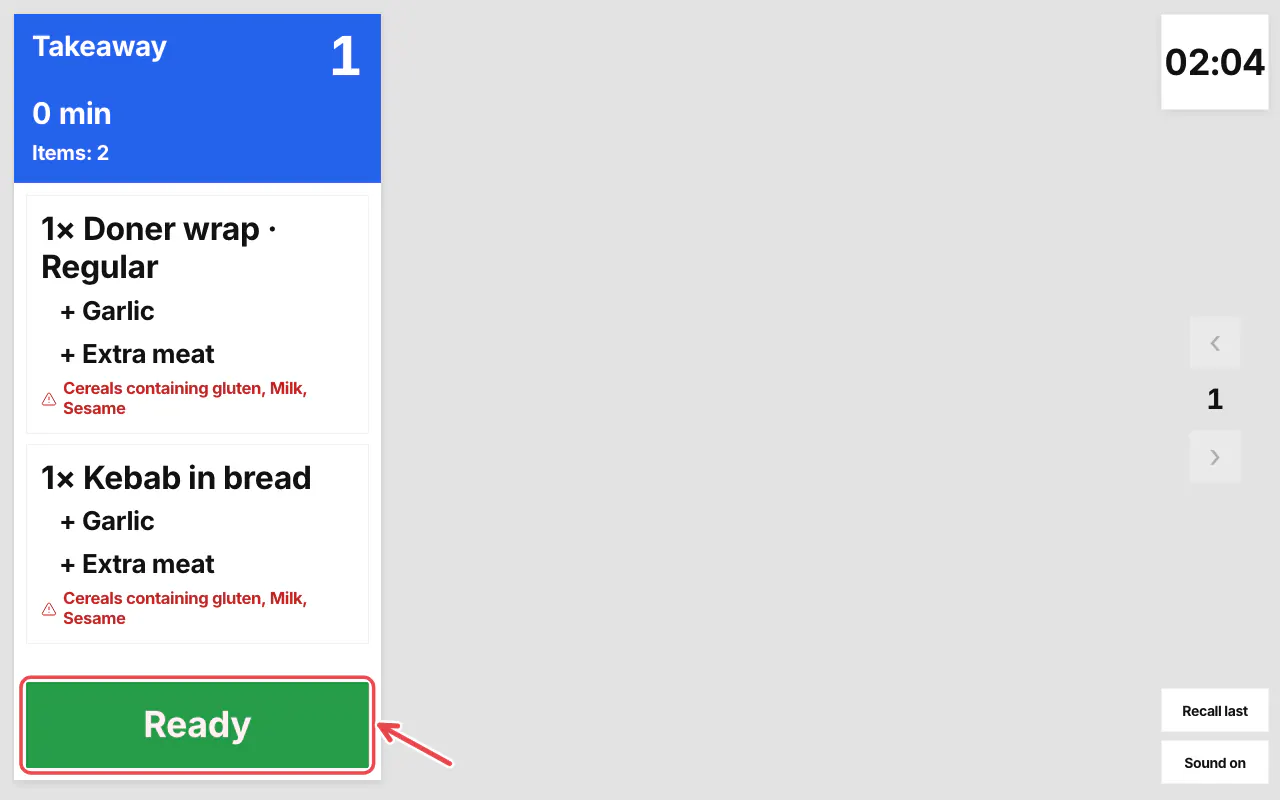
Orders arrive from the POS when staff tap Send to kitchen, and from the kiosk, QR and online orders.
When an order is ready, tap Ready on its ticket (on some screen themes the button is Done). Recall last brings the last one back.
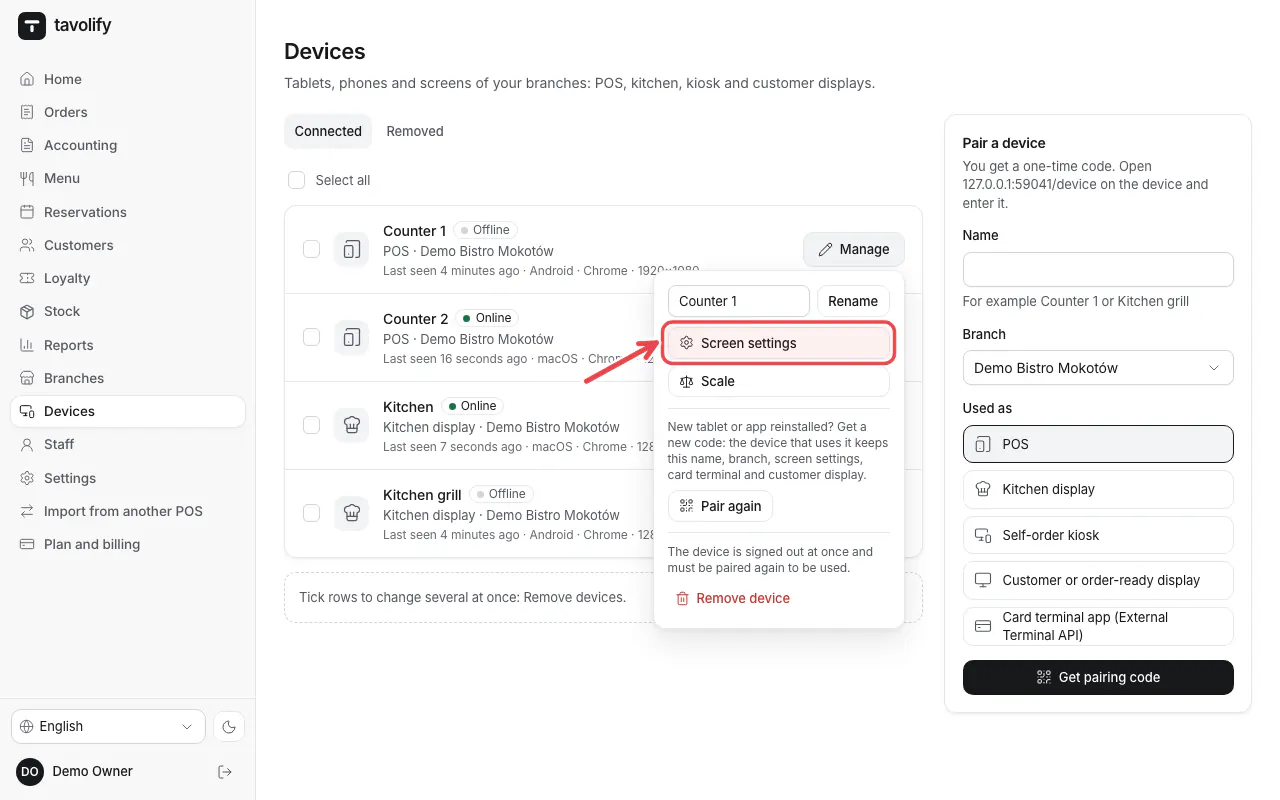
In Devices → Manage → Screen settings choose the language, theme and stations of the screen.
Related articles
- KDS Pro: stations, timers and bump bar
- Order-ready board for guests
- Receipt printer and kitchen tickets
Did this answer your question?
Still need help?Our team is happy to answer.
Send us a message