
KDS Pro: stations, timers and bump bar
Set up KDS Pro in Tavolify: kitchens and stations, yellow and red timers, bump bar keys and limits on orders per time slot.
1 min readUpdated November 13, 2026
KDS Pro is for kitchens with several stations or a busy rush.
Steps
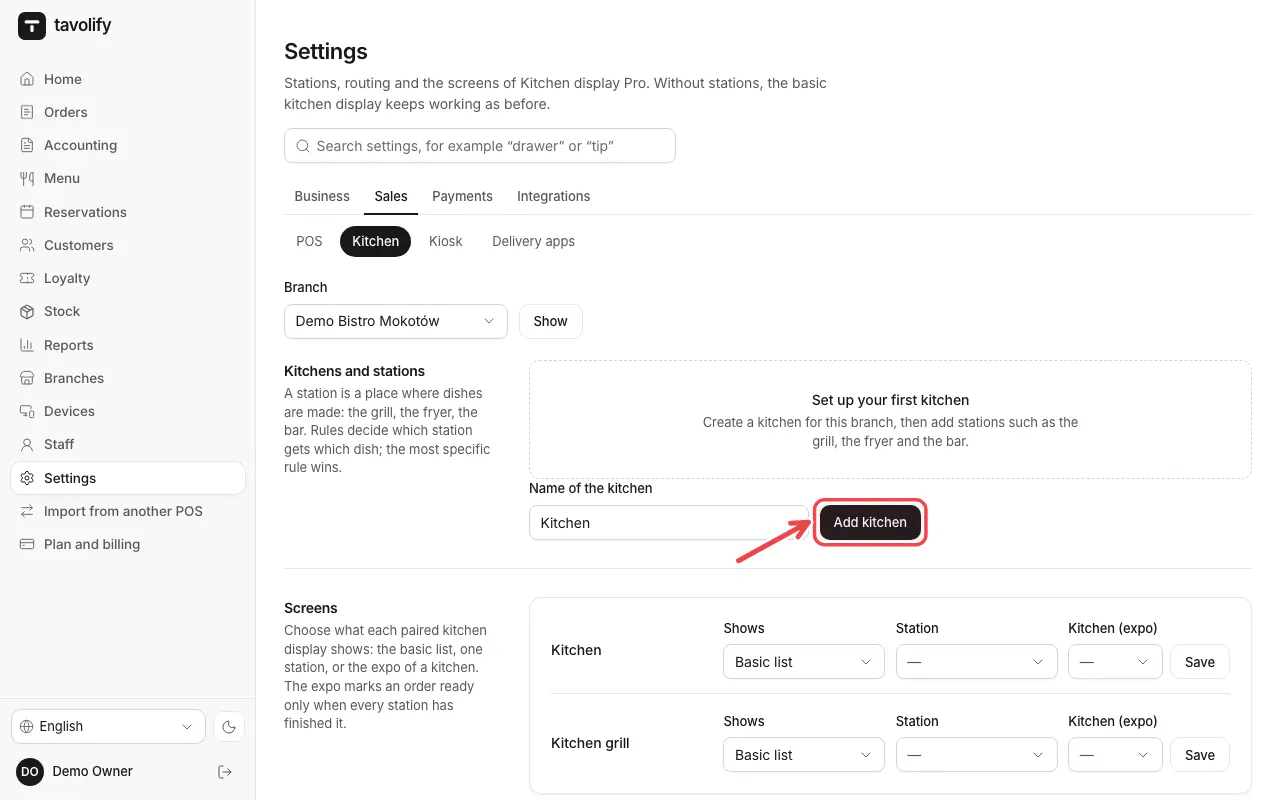
Open Settings → Kitchen. Tap Add kitchen and add the stations, for example grill and cold kitchen.
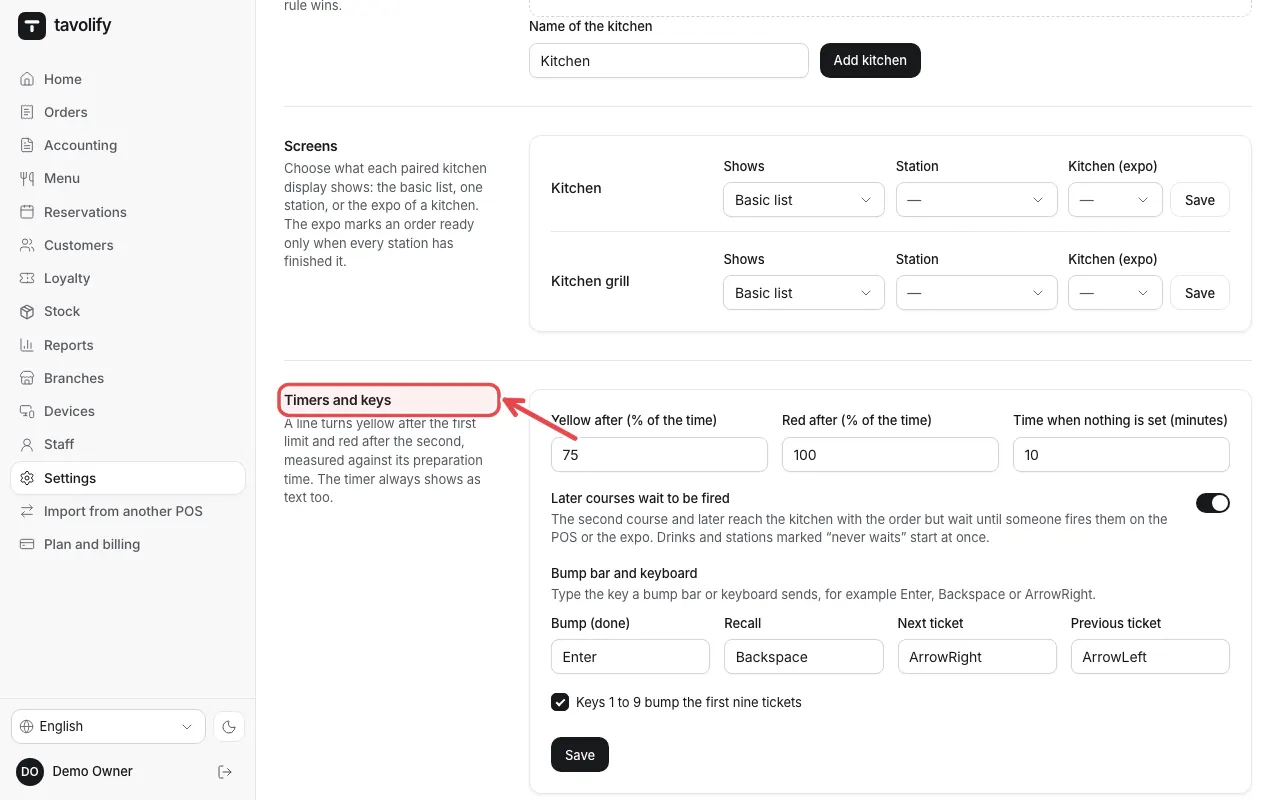
Under Timers and keys set when a ticket turns yellow and red.
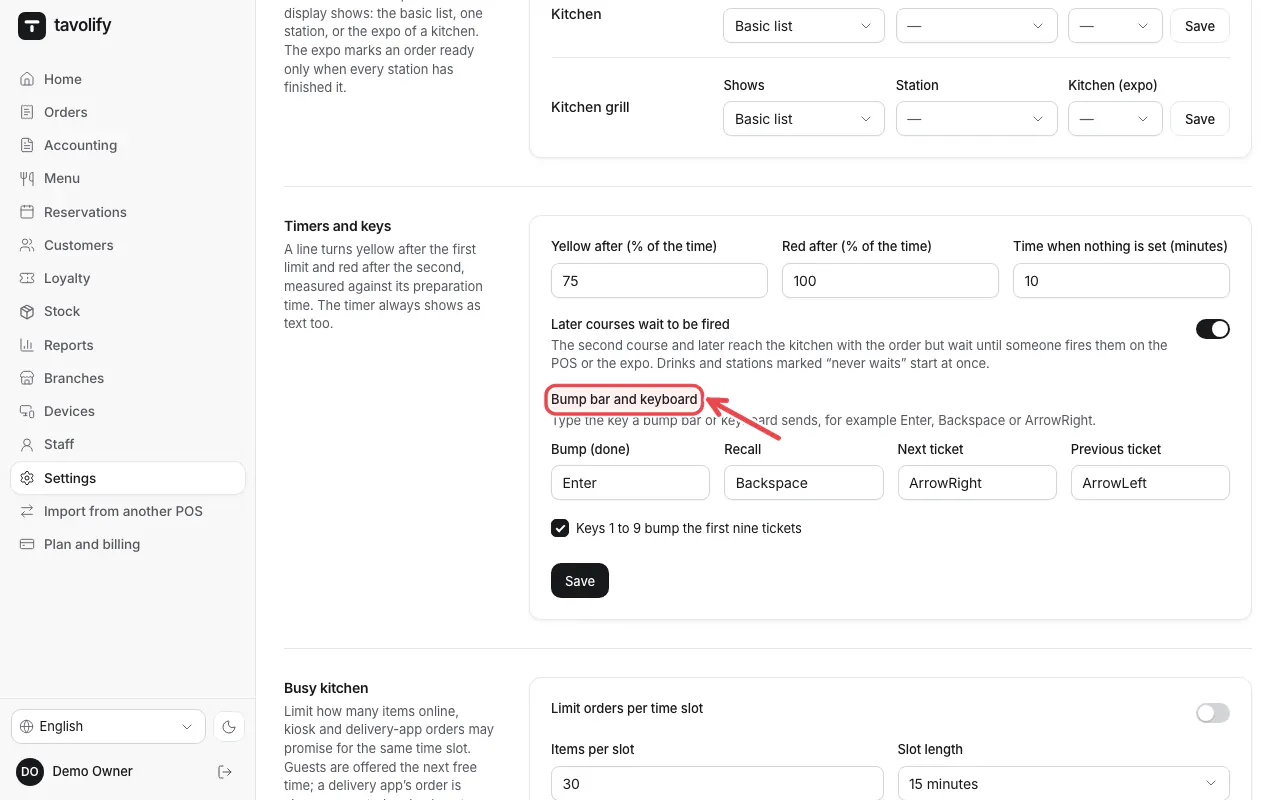
Under Bump bar and keyboard set the keys for Bump (done), Recall and moving between tickets.
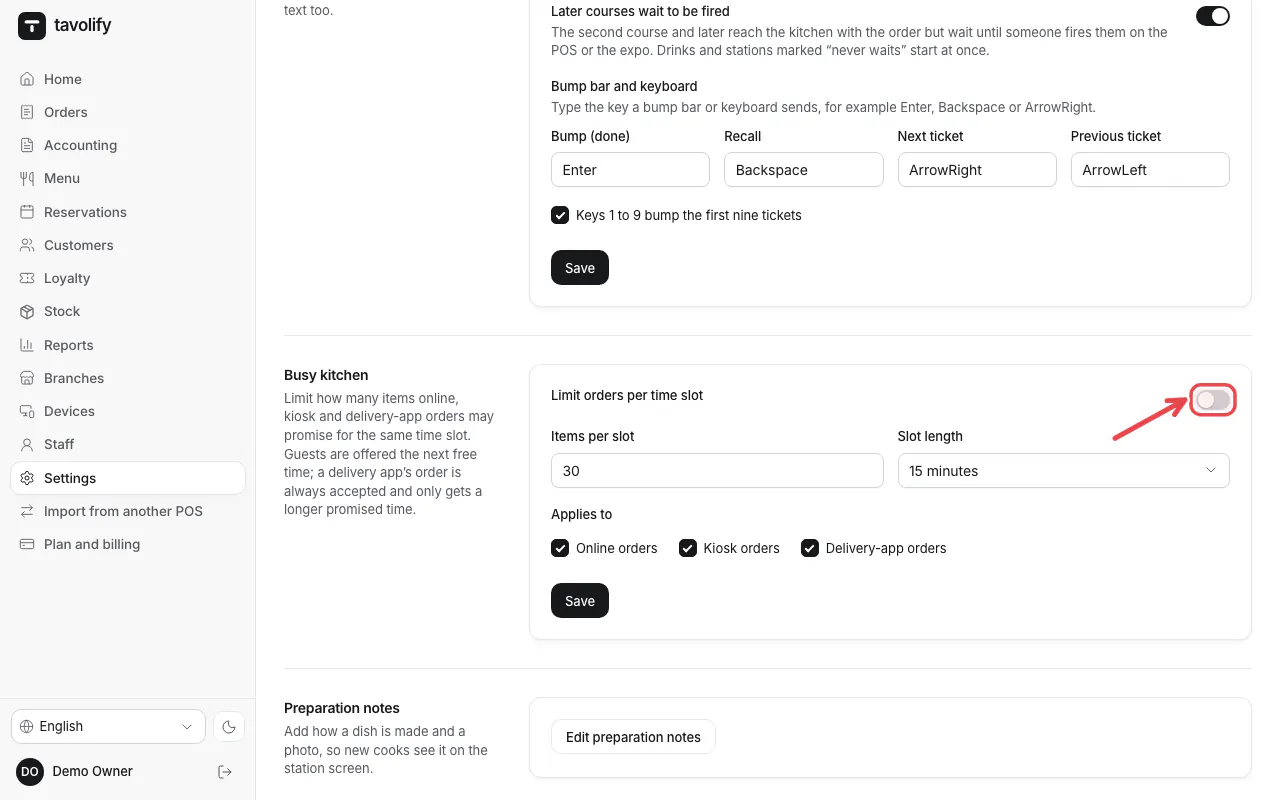
Under Busy kitchen switch on Limit orders per time slot for online, kiosk or delivery-app orders.
Related articles
- Set up the kitchen display
- Order-ready board for guests
- Set up the self-order kiosk
Did this answer your question?
Still need help?Our team is happy to answer.
Send us a message