
The look of the kiosk
Change the look of the Tavolify kiosk: menu style, light or dark theme, start screen pictures, brand colour and banners.
1 min readUpdated November 13, 2026
Make the kiosk look like your brand.
Steps
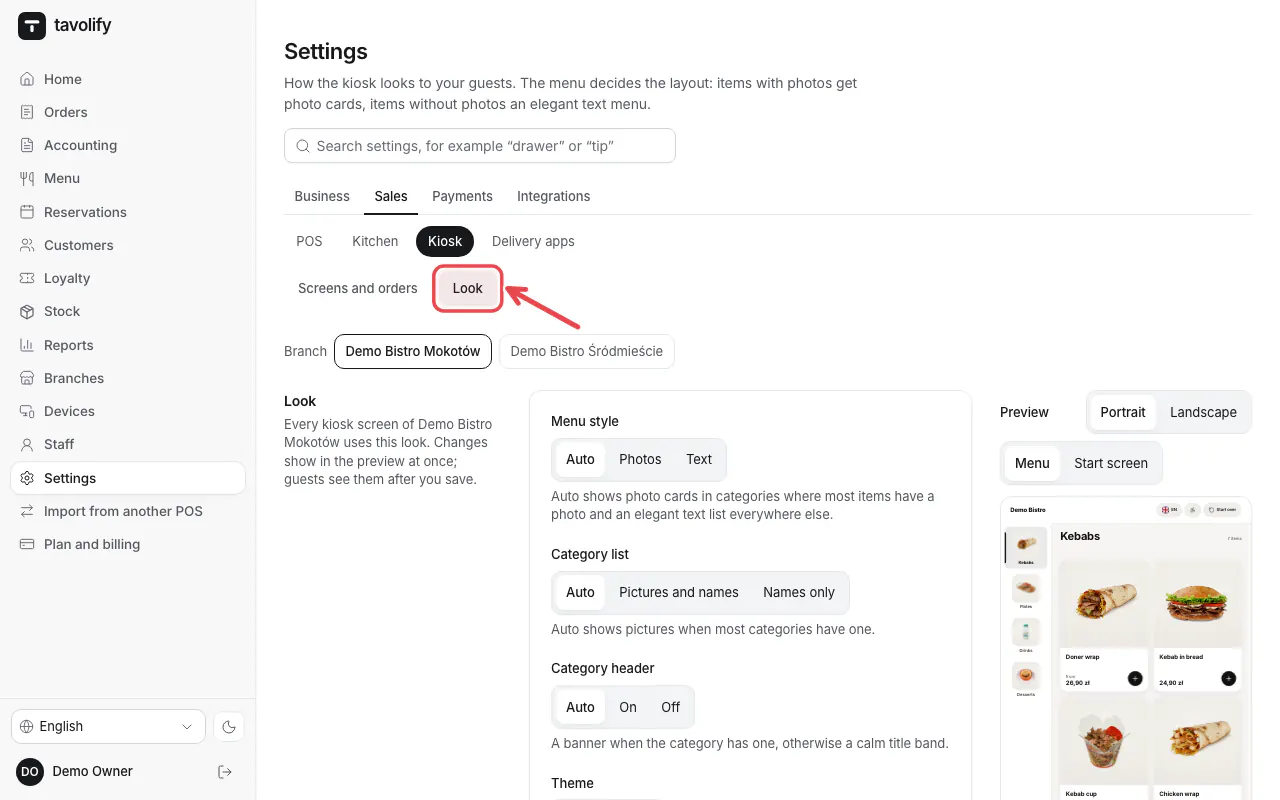
Open Settings → Kiosk → Look.
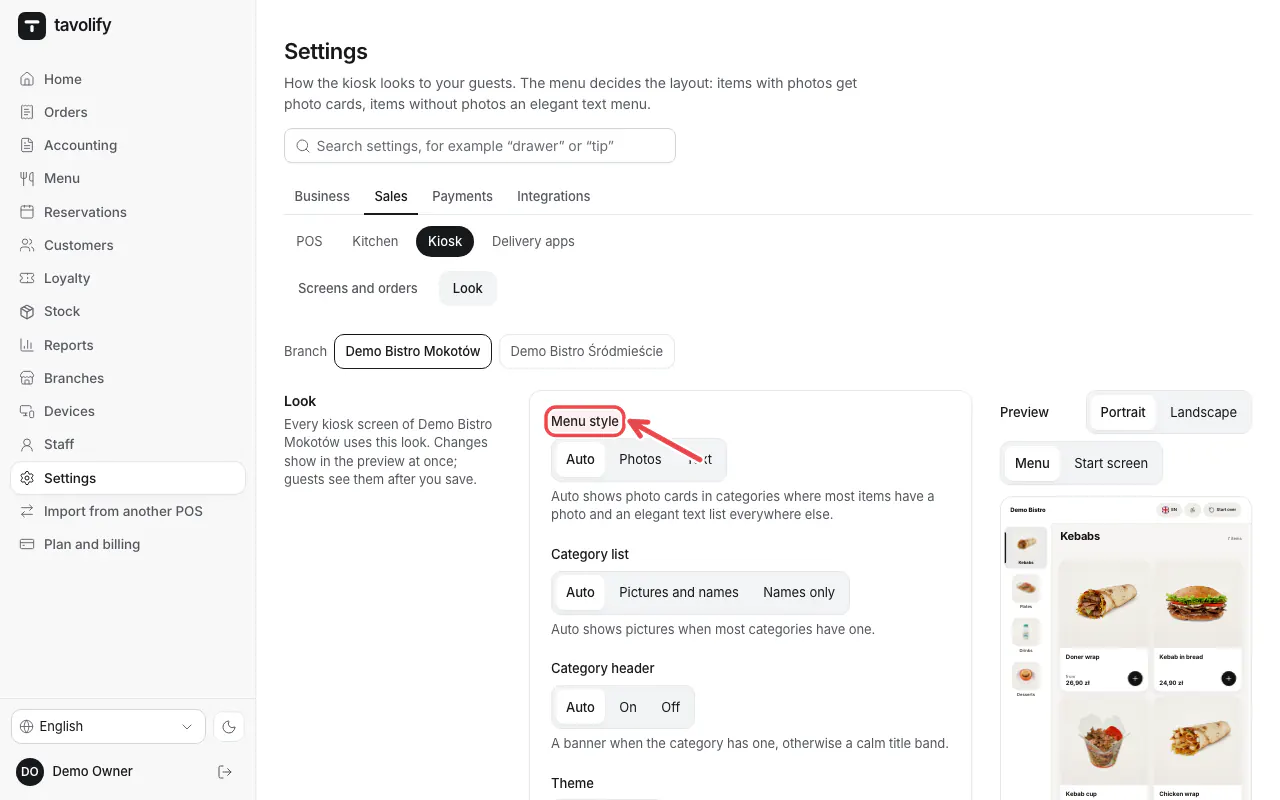
Choose the Menu style, the Theme and the Typeface.
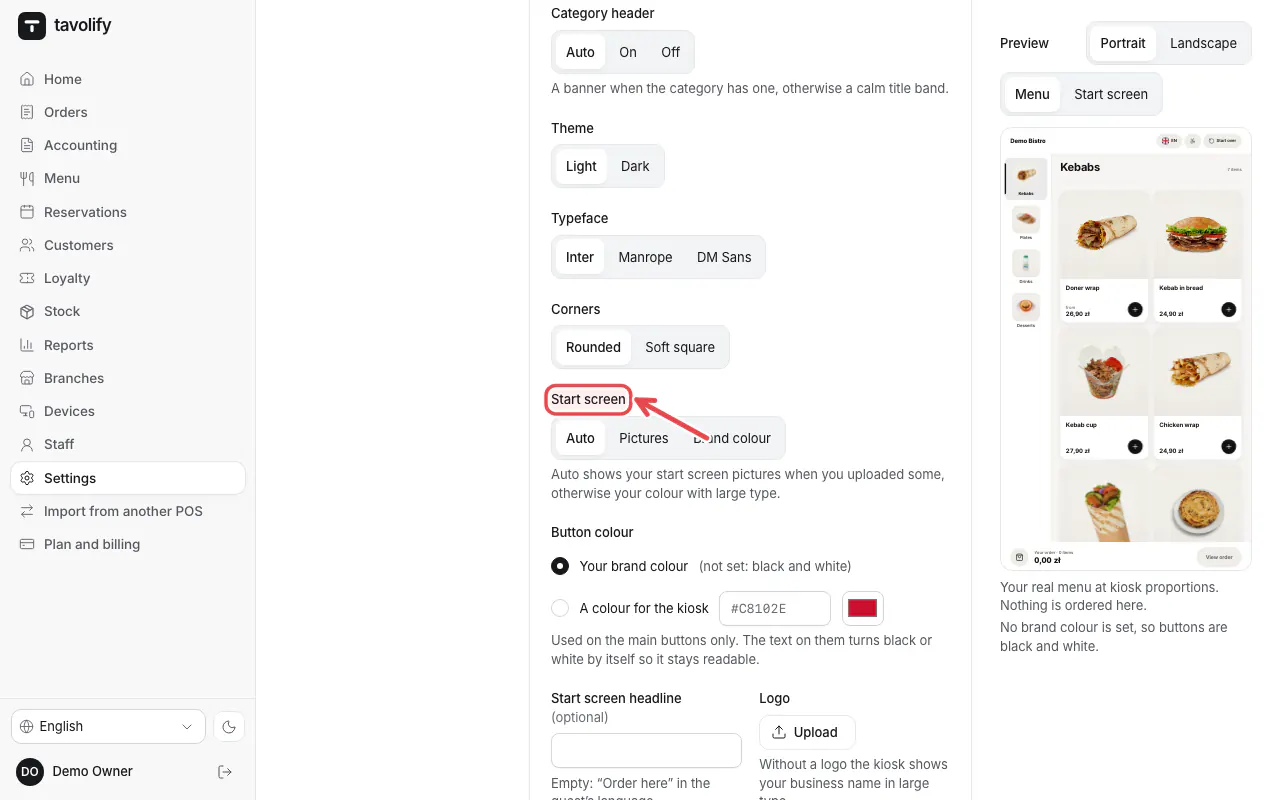
Upload pictures for the Start screen and set the Button colour. Save.
Related articles
- Set up the self-order kiosk
- Add a menu item
- A card terminal for the kiosk
Did this answer your question?
Still need help?Our team is happy to answer.
Send us a message