
Receipt printer and kitchen tickets
Set up receipt and kitchen printing on the Tavolify POS: printer, paper width, automatic receipts and kitchen tickets per station.
1 min readUpdated November 13, 2026
Printing is set on each till. Kitchen tickets go to the station where a category is made.
Steps
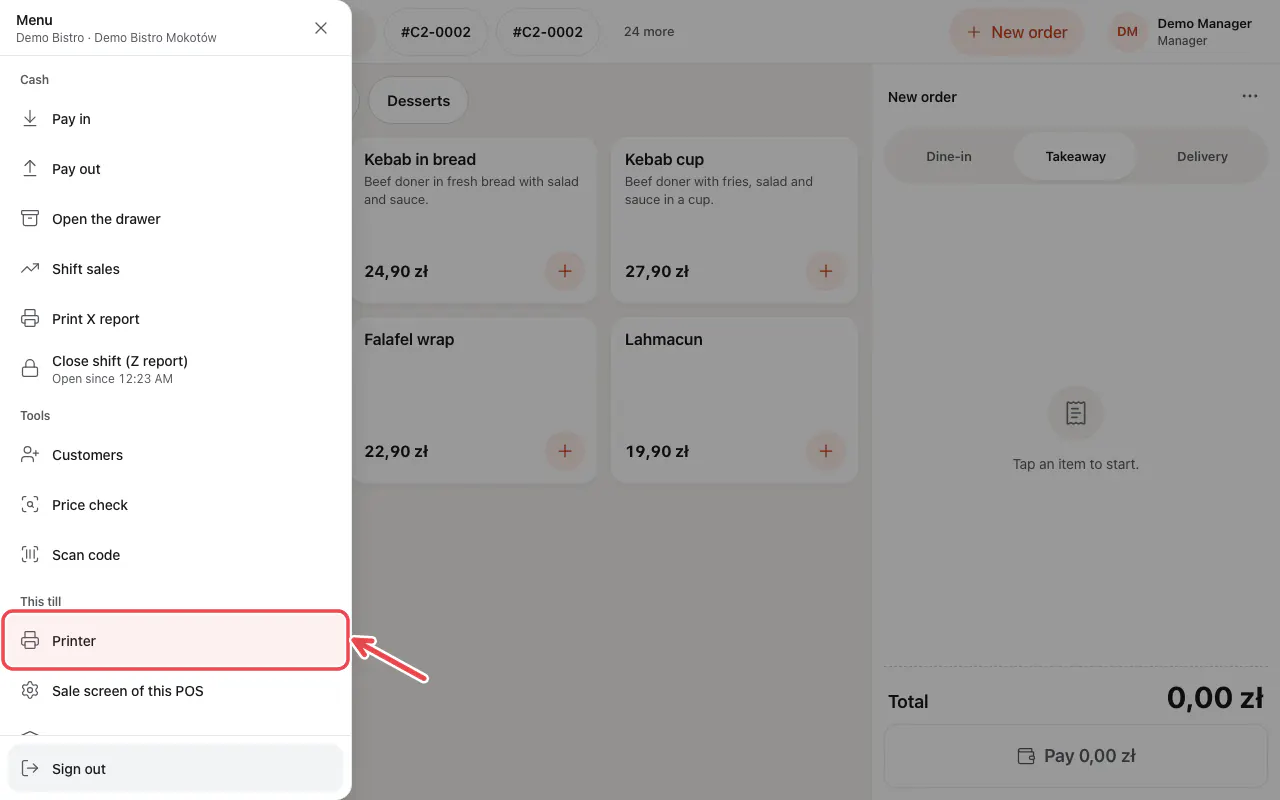
On the POS open ☰ → Printer.
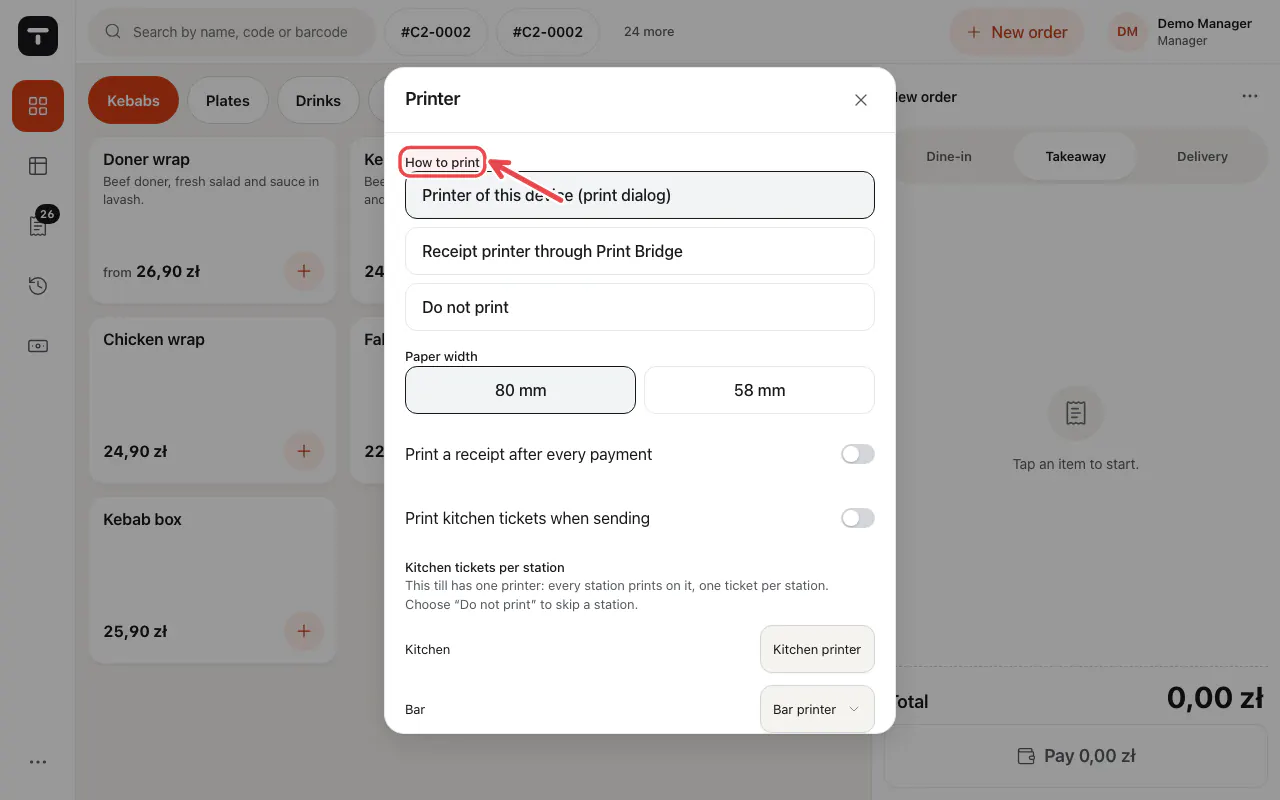
Under How to print choose the printer, then the Paper width and Print a receipt after every payment.
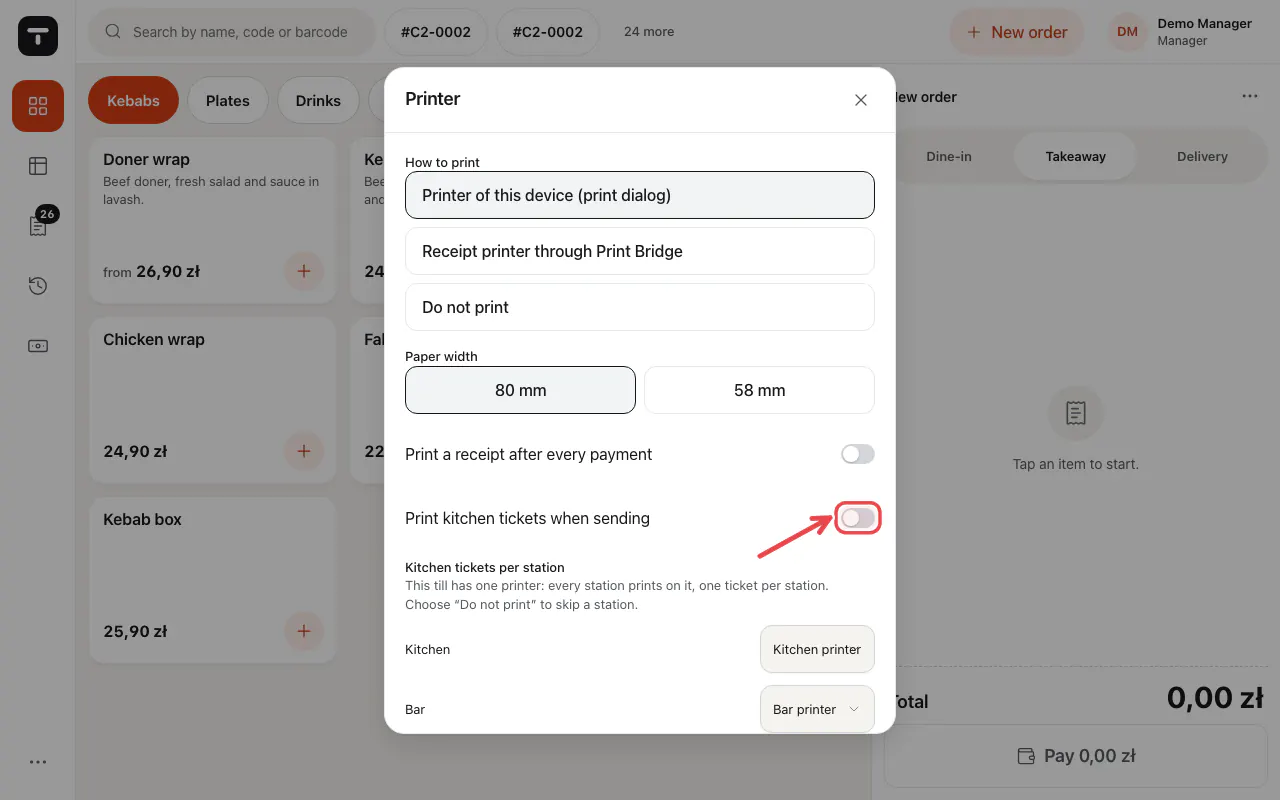
Switch on Print kitchen tickets when sending and choose a printer for each station.
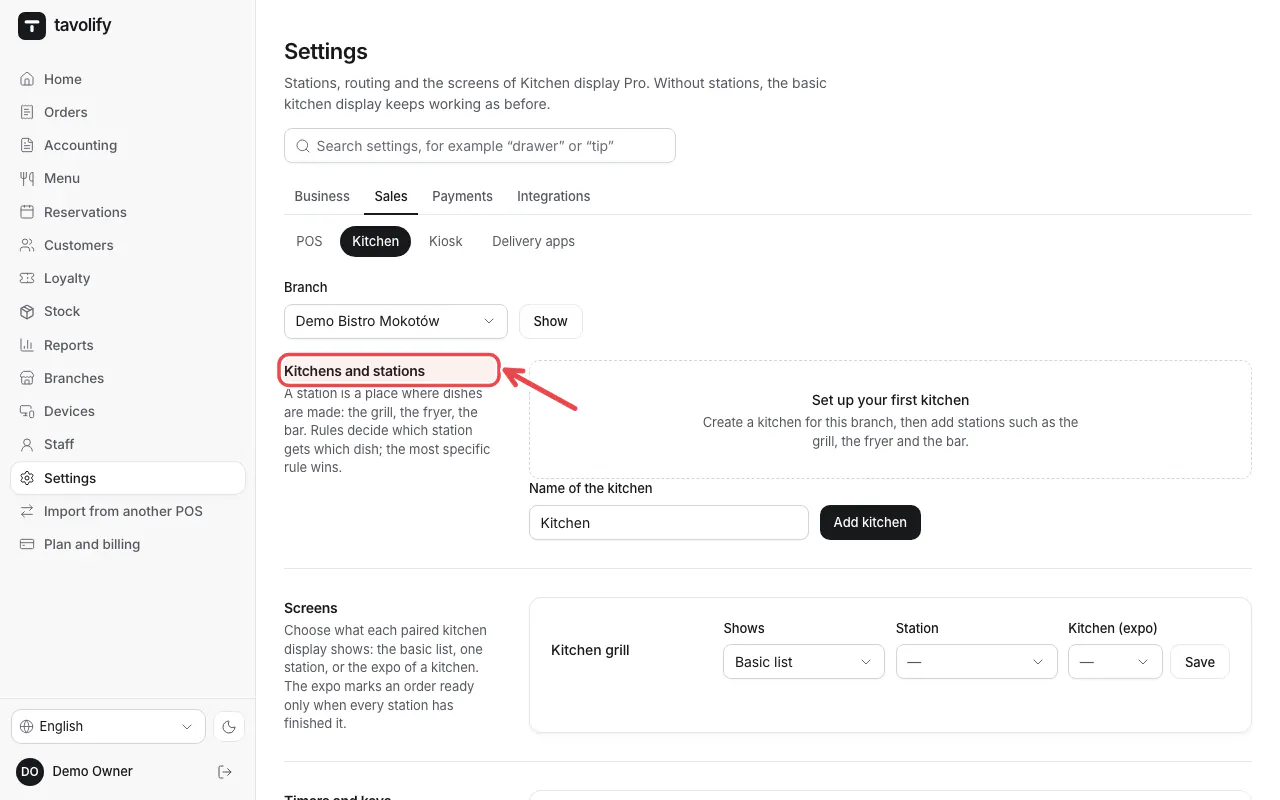
In the admin Settings → Kitchen lists your kitchens and stations.
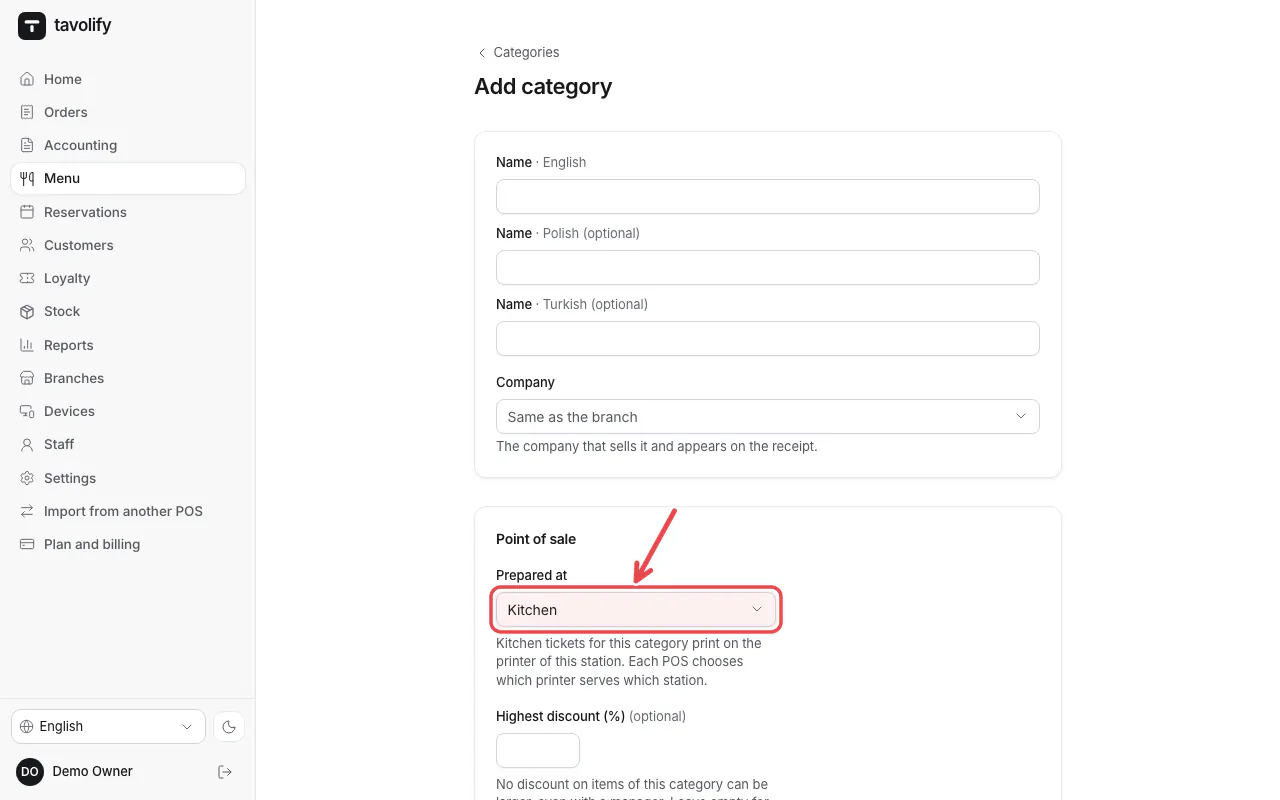
In each category choose where it is Prepared at.
Related articles
- Set up the kitchen display
- The printer does not print
- Connect a fiscal printer (Elzab, Posnet, Novitus)
Did this answer your question?
Still need help?Our team is happy to answer.
Send us a message