
Branches
Add branches in Tavolify with address and company, set floor plans and online ordering per branch and keep one central menu.
1 min readUpdated November 13, 2026
Each branch has its own address, devices, tables and online ordering. The menu is shared.
Steps
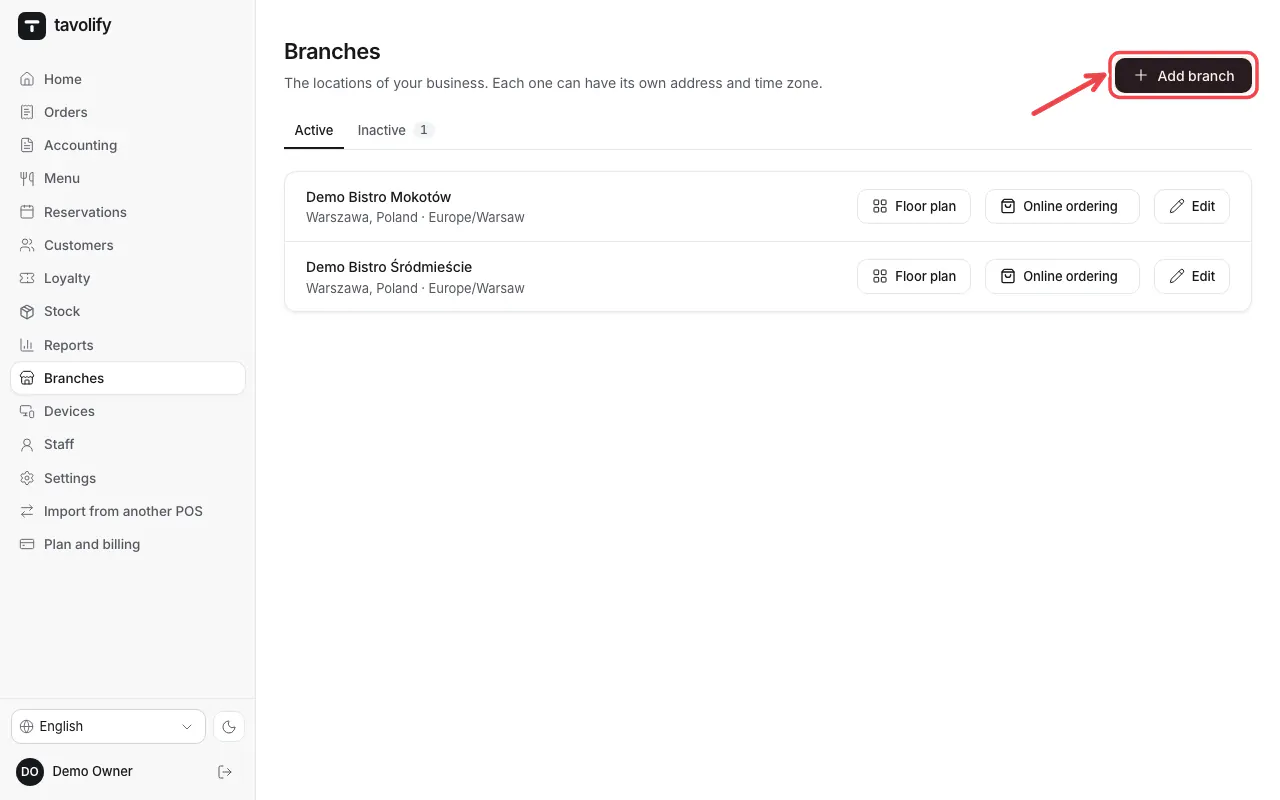
Open Branches and tap Add branch.
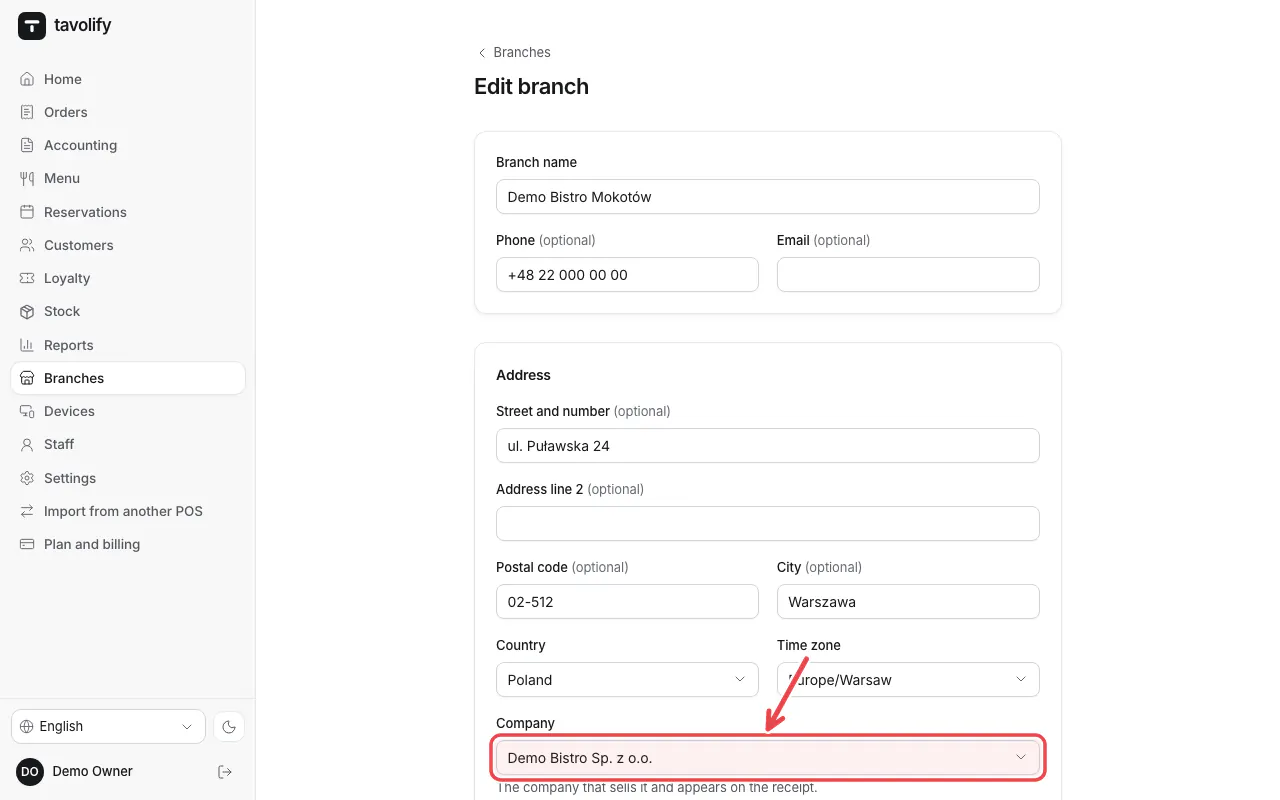
Enter the name and address and choose the Company that sells there. Save.
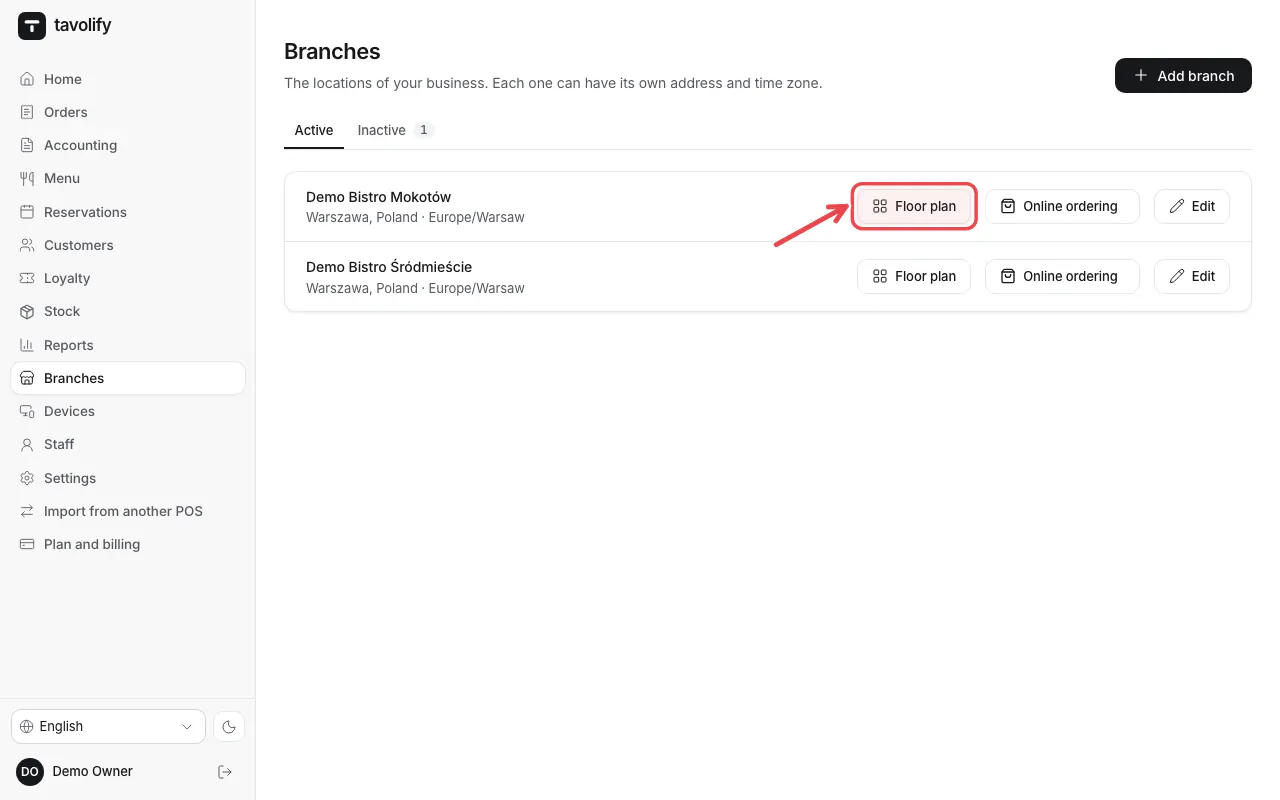
Each branch has its floor plan and its online ordering.
Related articles
- Online ordering: pickup and delivery
- Tables and the floor plan
- Several companies (tax numbers) in one restaurant
Did this answer your question?
Still need help?Our team is happy to answer.
Send us a message